SAP asset master automation is the practice of setting up fixed asset master records from a spreadsheet instead of keying each one through AS01. PostNow runs it from Excel: each asset is a row with its depreciation areas beneath, and the add-in posts the set with the standard BAPI_FIXEDASSET_CREATE1, placing each asset in its class, setting its valuation across every area, checking the values, and committing the batch in one run, with any SAP error rendered in plain language.
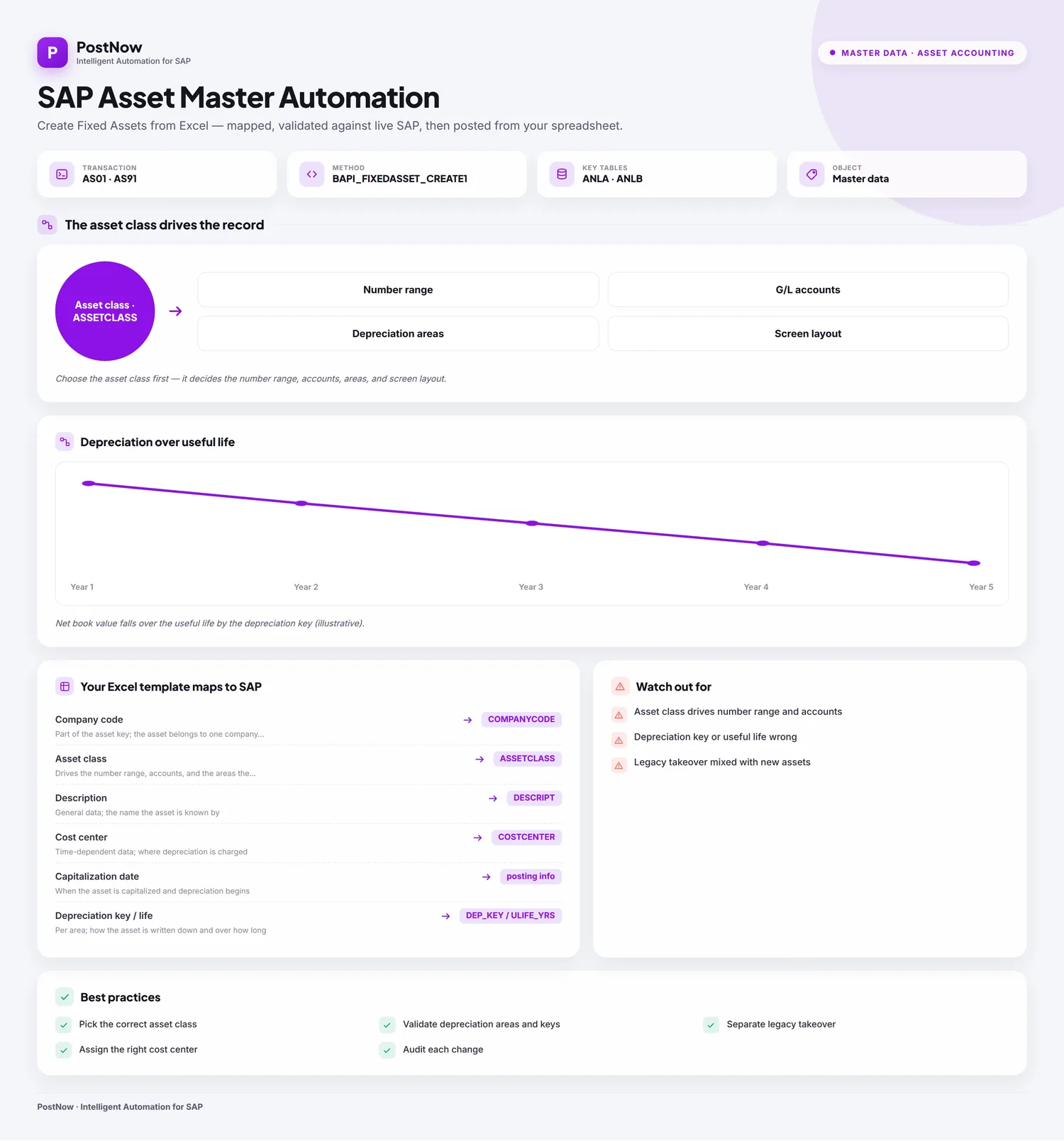
Below is a twelve-step worked example of an asset master upload from Excel to SAP, taking in brand-new assets with their full depreciation setup. Save the mapping, the area grouping included, and you have an asset master Excel template ready for the next capital project or legacy migration. The approach is the same on classic ECC and on S/4HANA, where Asset Accounting still creates masters behind AS01 and the same BAPI. Once that setup is done, the people loading assets need no ABAP and no developer waiting in the wings.
Why automate asset creation rather than keying AS01
Creating an asset manually means opening AS01, choosing the asset class, entering the description and quantity, setting the cost center and location on the time-dependent tab, fixing the capitalization date, then completing each depreciation area with its key and useful life. One asset is straightforward. Capitalizing a new plant, absorbing an acquired asset register, or migrating a legacy fixed-asset ledger turns into hundreds of assets, each with several valuation areas, and that is where depreciation keys and useful lives begin to disagree.
An asset master upload takes the repetition out. The assets live in Excel and post to SAP, every area set, in one run. For a bulk asset creation at go-live or a mass asset upload during a migration, the fiddly parts, choosing the BAPI, matching columns to fields, getting the depreciation areas right, and reading FI-AA messages, are handled for you. The twelve steps that follow are the whole approach.
Before you start: what you need
- Your assets in Excel, one per row, with the company code stated and a row per depreciation area where an asset spans several valuation views.
- SAP authorization in line with
AS01andAS02for the company codes and asset classes you are loading. - PostNow in Excel, hooked up to your SAP system. Its function modules are deployed to SAP once during setup, after which every asset load runs from the task pane.
Your asset master Excel template: the fields SAP expects
A fixed asset has central data plus a valuation row for each depreciation area, so the template mixes asset columns with area columns. These are the fields an asset upload leans on; carry them, and confirm the asset class, cost center, and depreciation keys they name already exist.
| Excel column | SAP field | Why it matters |
|---|---|---|
| Company code | COMPANYCODE | Part of the asset key; the asset belongs to one company code |
| Asset class | ASSETCLASS | Drives the number range, accounts, and the areas the asset opens |
| Description | DESCRIPT | General data; the name the asset is known by |
| Cost center | COSTCENTER | Time-dependent data; where depreciation is charged |
| Capitalization date | posting info | When the asset is capitalized and depreciation begins |
| Depreciation key / life | DEP_KEY / ULIFE_YRS | Per area; how the asset is written down and over how long |
BAPI_FIXEDASSET_CREATE1 builds the asset around a KEY of company code and asset, a GENERALDATA structure with the class and description, POSTINGINFORMATION for the capitalization date, TIMEDEPENDENTDATA for the cost center and location, and a DEPRECIATIONAREAS table holding a row per valuation area. Parallel X structures flag which fields a change should write, a test run trials the load, and a commit persists it; the call hands back the new asset number. Step 2 has PostNow's function finder pick the BAPI and pull its structures in.The asset master upload, step by step
Lay out and open your sheet
Give each asset a row under headers like Company Code, Asset Class, Description, Cost Center, and Capitalization Date, and where an asset spans several areas, add a row per area carrying the Depreciation Key and Useful Life. Open the workbook and start up the PostNow task pane to the side.
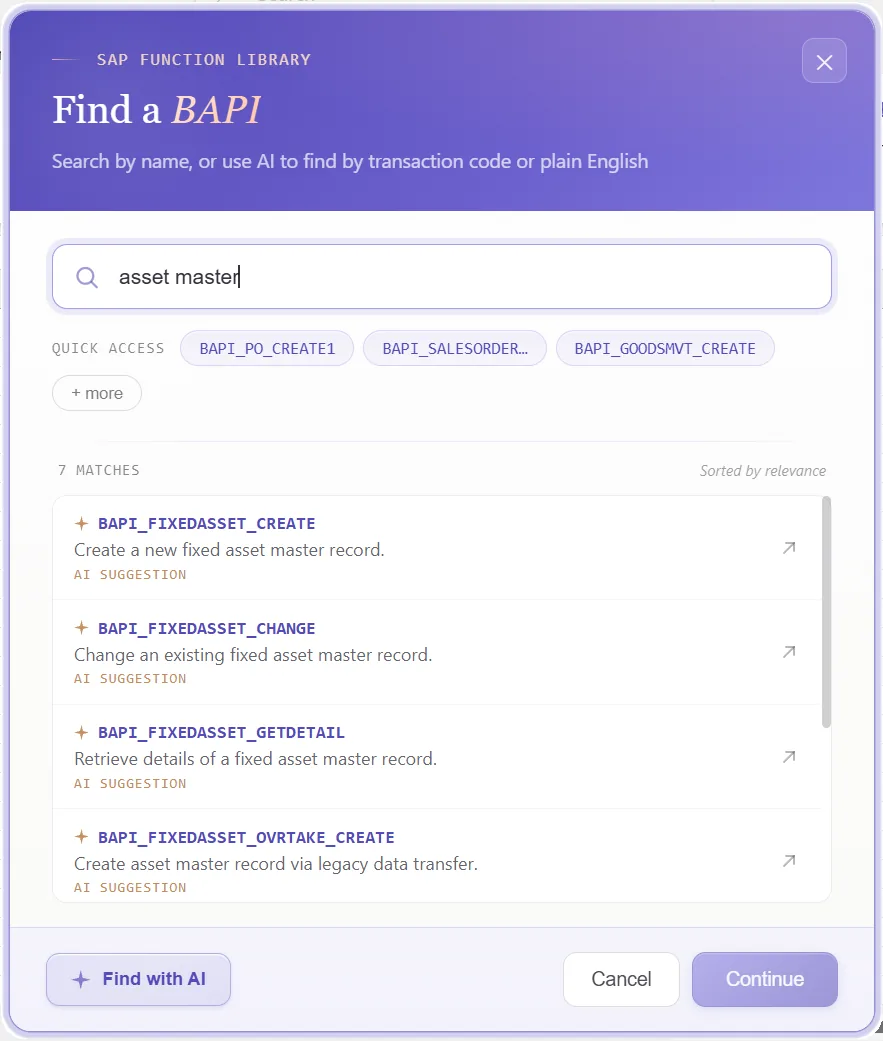
Choose the asset BAPI
A standard function does the work, so nothing is recorded. In the function finder, pick what suits:
- For new assets, take
BAPI_FIXEDASSET_CREATE1, which builds an asset with its depreciation areas in one call - Switch on the test run to trial a load and see it would post before any asset number is drawn
- The asset is persisted by a commit, which PostNow issues after each successful create
Confirm the function and PostNow brings in its structures, the key, the central data, and the depreciation-area table, so AS01 stays shut.
Look over the structures it returns
What comes back is an asset key, a set of central structures, and a table of valuation areas. Because it follows how FI-AA stores an asset, a glance shows the identity, the attributes, and the depreciation setup:
That tells you, before any mapping, which columns describe the asset and which repeat per valuation area.
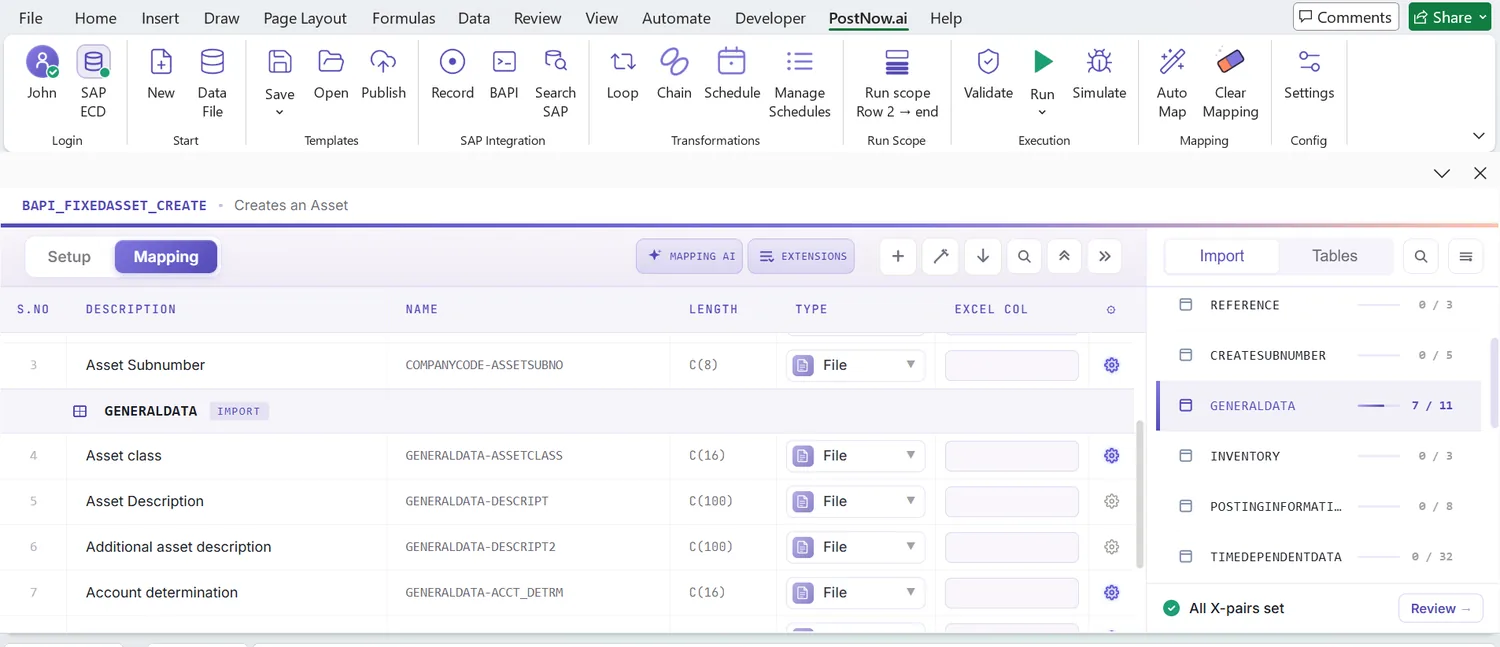
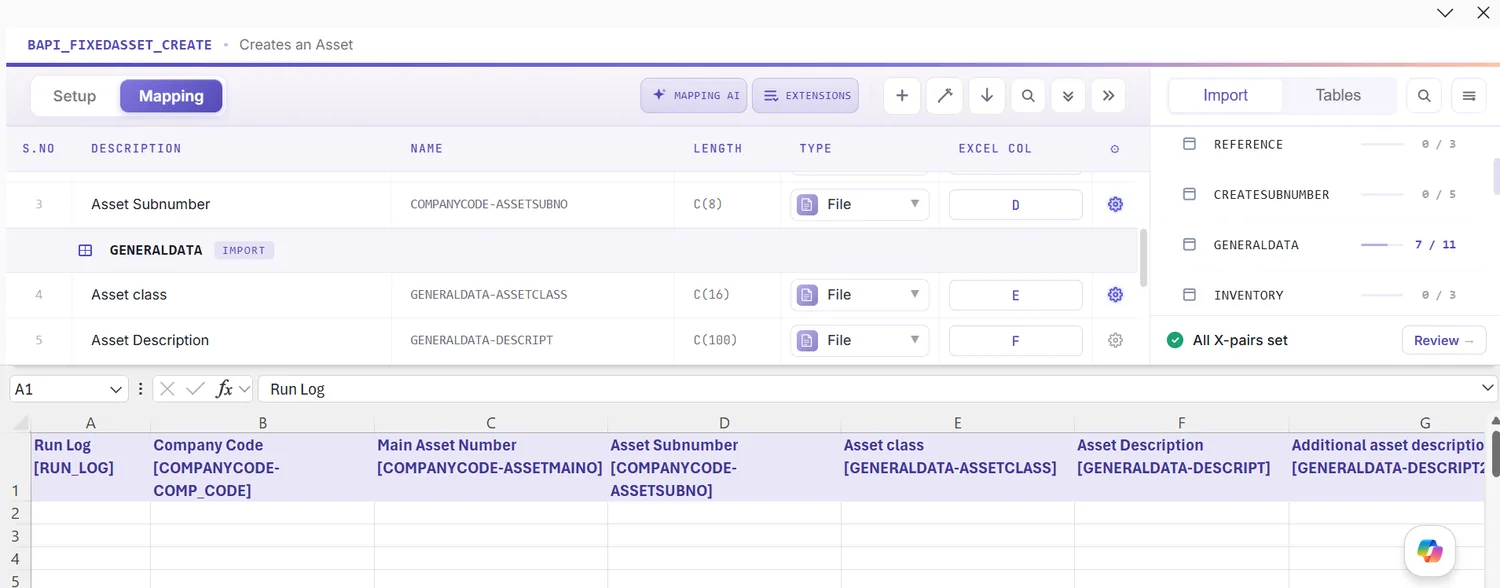
Open the Mapping Designer
Choosing the BAPI fills the Mapping Designer with a line for each central field and each area field. Two things help with assets:
- Extensions are picked up. Append fields your installation adds to the asset structures are detected, ready to map.
- You can add your own. Anything not caught automatically you place manually, keeping standard and custom data in one load.
Match columns with Mapping AI AI
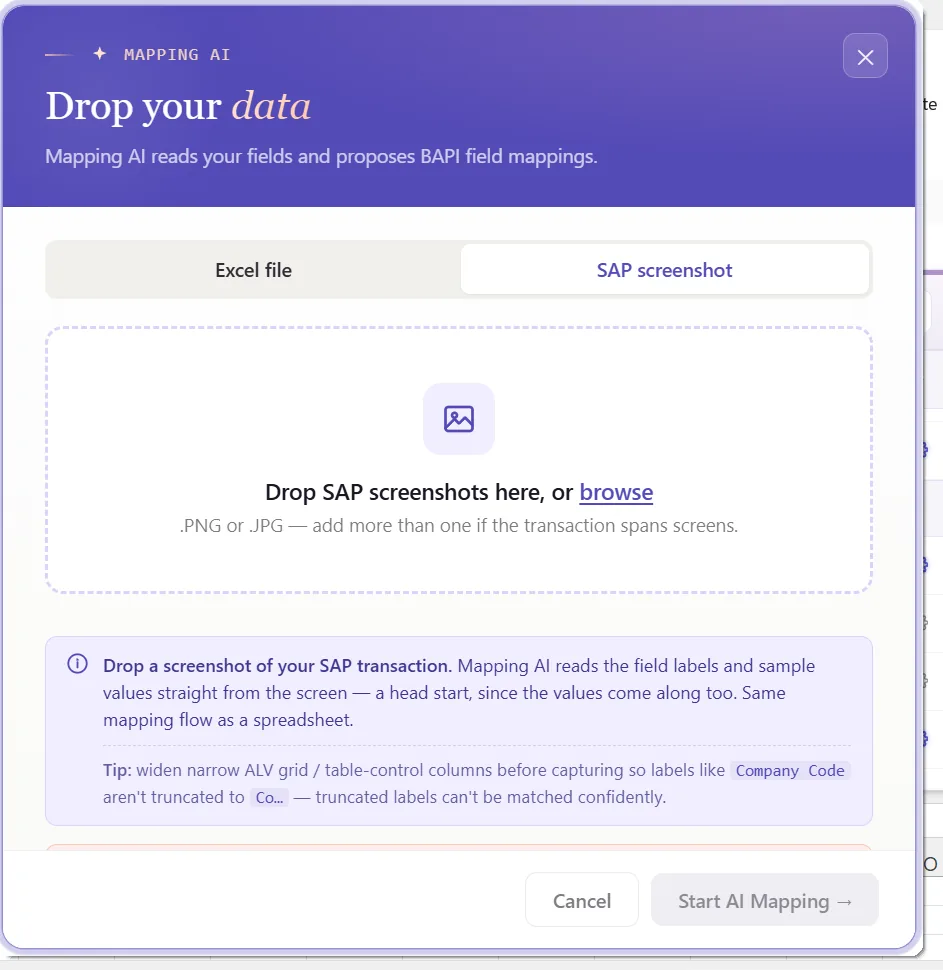
Now bind the structures to your data. Mapping AI suggests an Excel column for each field, working from your headers or a screenshot you paste, and you accept or change each one, helpful when an asset brings central data alongside a set of depreciation areas.
Auto Map and group areas under assets
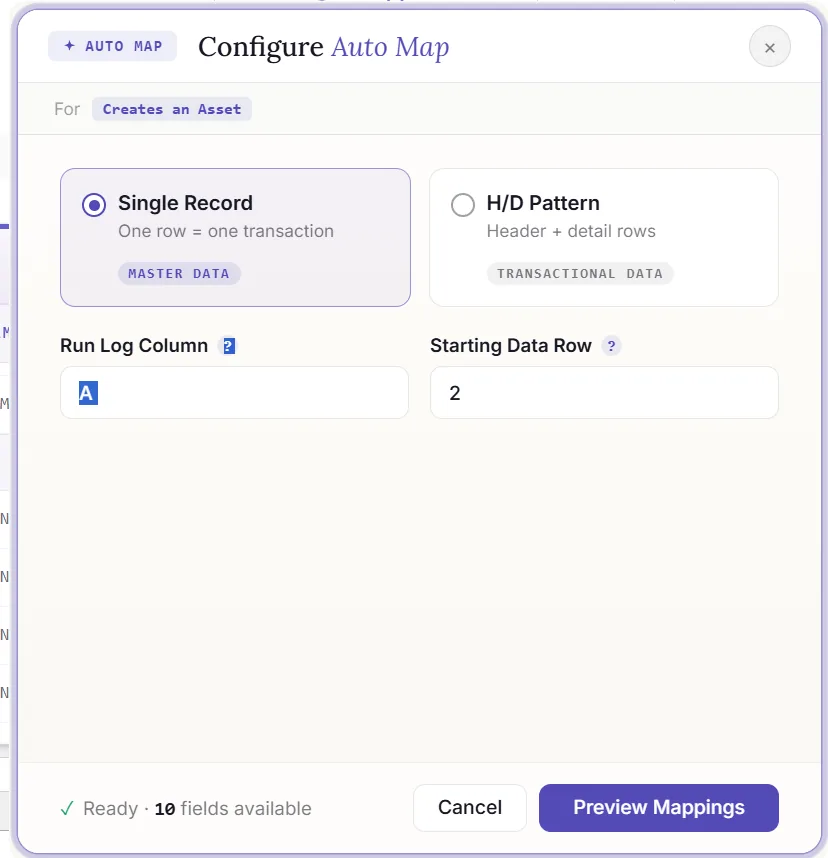
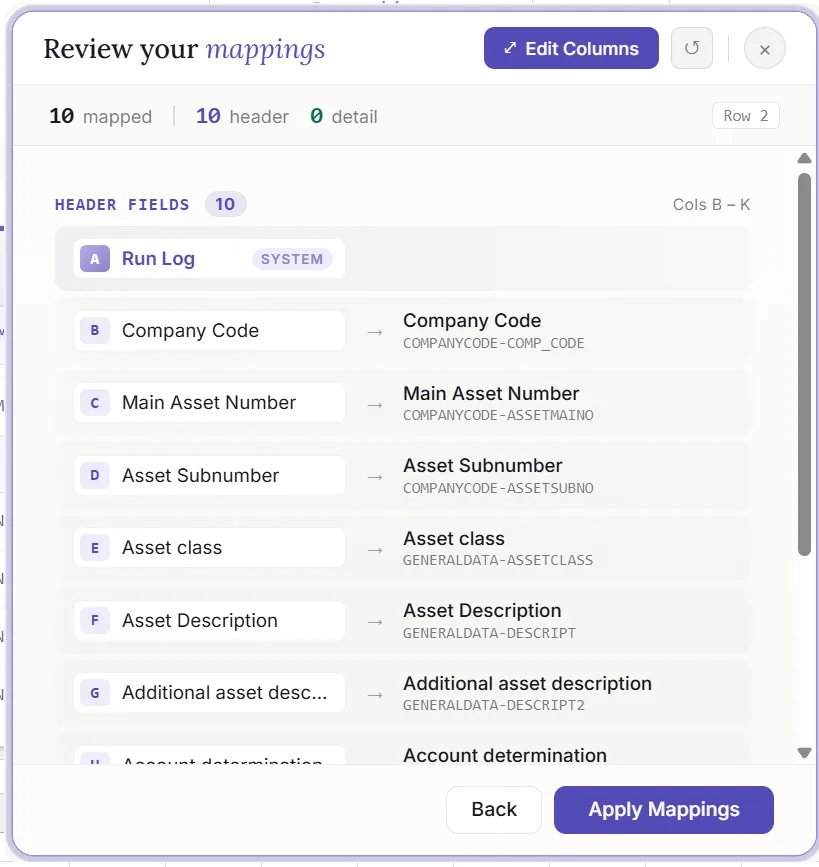
Press Auto Map to settle the mapping and write SAP-tagged headers into the sheet. Because an asset carries several valuation rows, this is also where you set the grouping: rows that share an asset reference are gathered into one asset, the central data read once and the area rows read as the depreciation table. From this point the workbook is the template, and the grouping rides along with it.
Set formatting and the X indicators
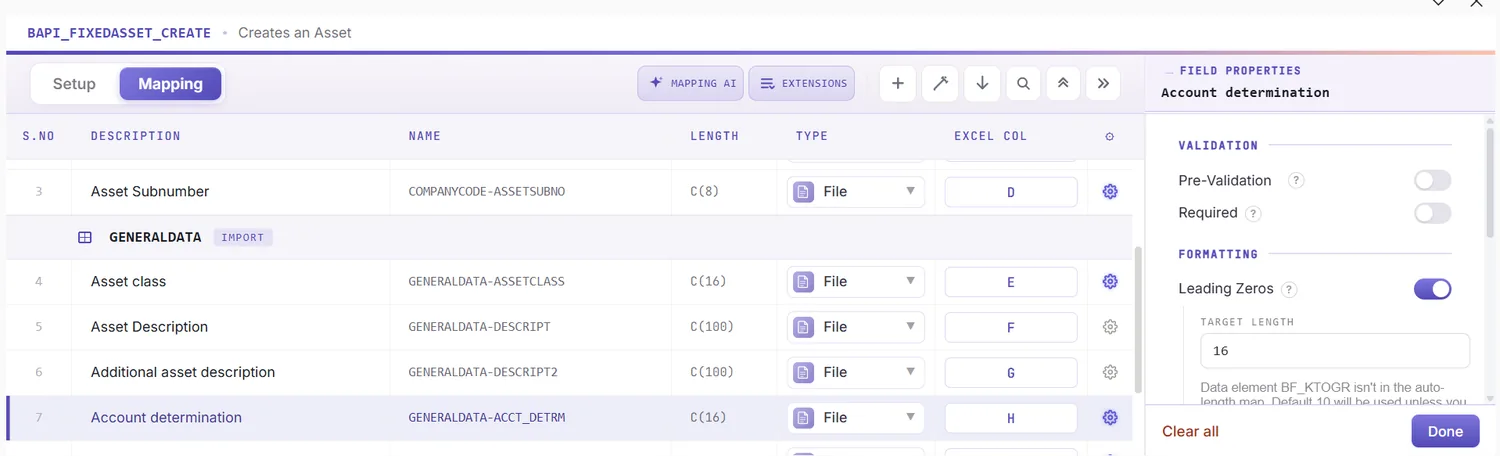
A field's properties govern how its value goes across: leading zeros on the cost center, upper case on codes, a date format on the capitalization date, the right decimals on quantity and scrap value, defaults, and regex.
For changes, the parallel X structures decide what is written: a field is written only when its indicator is switched on. Rather than marking those manually, PostNow detects the fields you have changed and raises their indicators for you, so amending a batch of assets stays limited to the values you actually touched.
Screen the data in Excel first
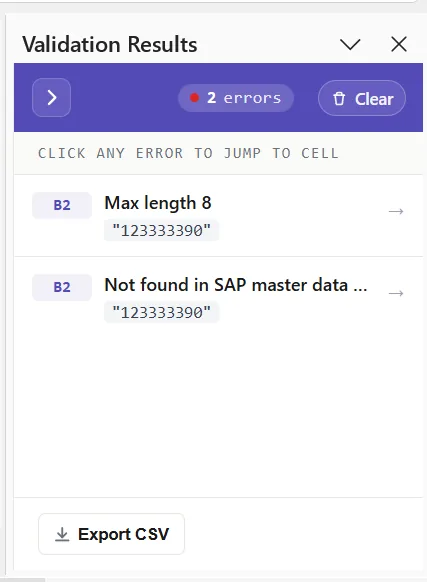
It pays to screen before posting: an FI-AA error usually surfaces as a short code after a row has already failed. Validate pulls the check forward, testing each row against SAP's length, format, and required-field rules and flagging the problem cells, so the sheet is sound before anything goes.
Confirm against live SAP
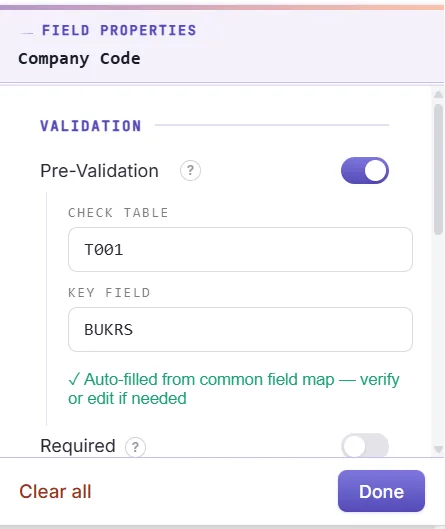
Clean formatting does not prove a value is real, a cost center or depreciation key can look right and be absent. To test it, open the field's properties, turn on field validation, and give it the check table and field, an asset class against ANKA, a cost center against CSKS, or a depreciation key against its configuration. Pick the cell, run Validate master data, and PostNow checks live SAP for the value.
Group areas into assets with loops
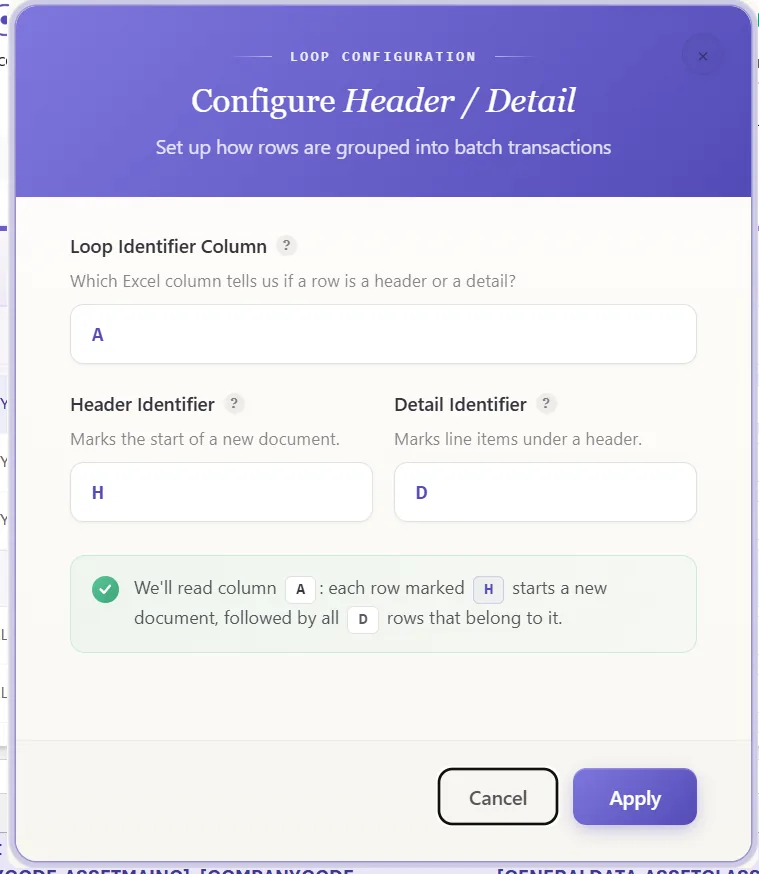
An asset with its valuation rows is a natural header/detail case, so this is where the structure pays off:
- Header/detail loops: rows sharing an asset reference collapse into one asset, the central data taken once and each area row added to the depreciation table.
- IF conditions: include only the rows you want, for example loading a tax area only where its key is filled, or skipping rows still missing an asset class.
Set the scope, post, and review AI
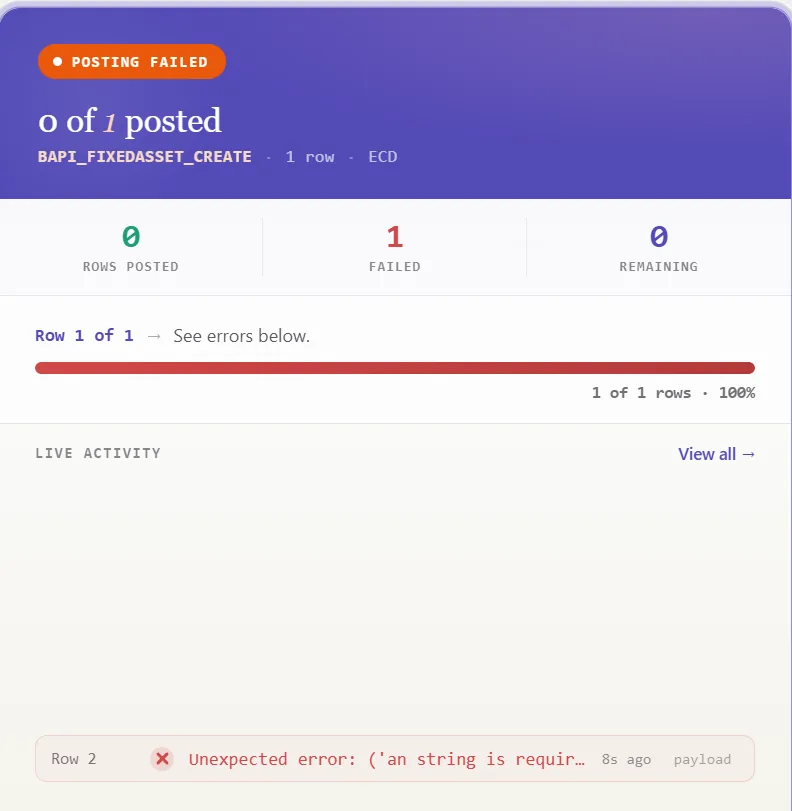
Set the range with Run Scope, one test asset before the rest, and press Run; the BAPI's test run fits here too. A few things help:
- Run log: results show live and write into a log column next to each row in Excel.
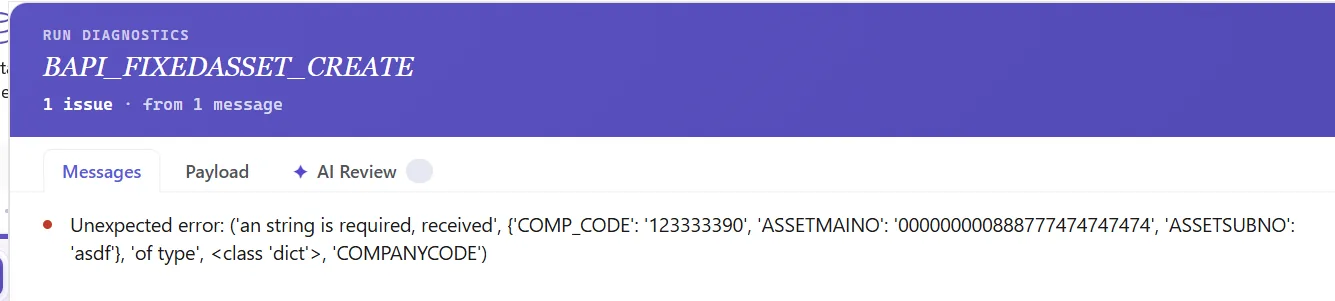
- Payload view: open the exact data sent to SAP for any asset, central data and areas together, so a failure is never opaque.
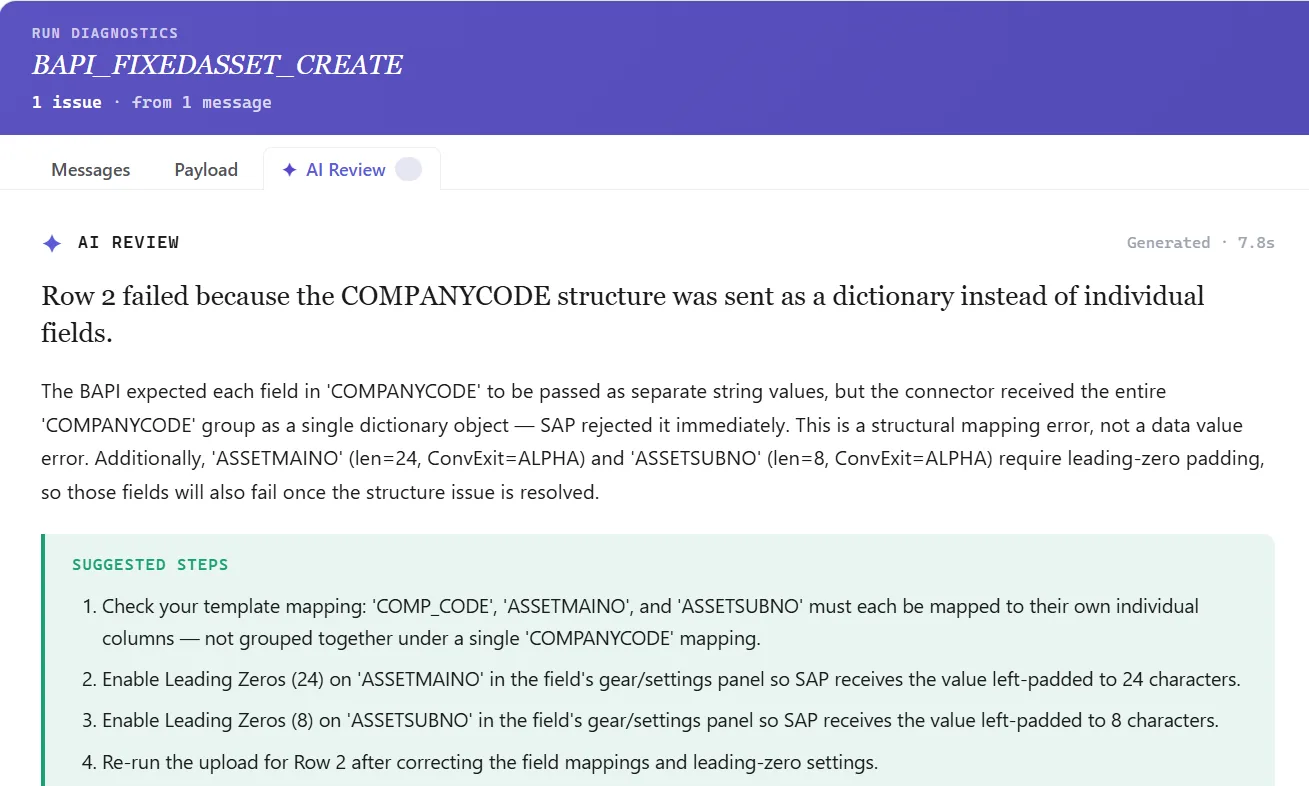
- AI error review: AI Review reads the FI-AA message and spells out, plainly, what stopped the asset and where to look.
- RETURN per asset: the BAPI returns a message per asset, and PostNow writes the new asset number back beside the row it belongs to.
Publish and roll it out to the team
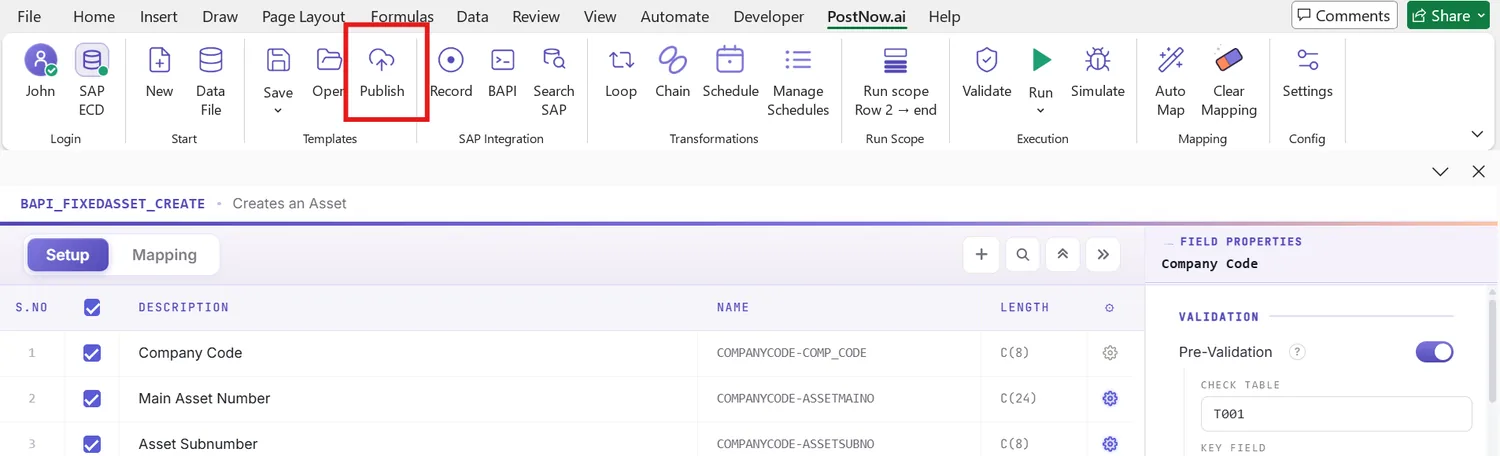
With the run clean, publish it. The configuration, area grouping and all, becomes a script colleagues run as is, they open it, paste their assets, and post, with no mapping to rebuild and no need to know the BAPI underneath. A single build becomes the asset accounting team's standard route for loading assets.
Let's talk
Bring a real asset register and a live SAP connection to a working session. We will group the depreciation areas under their assets, map, validate, and post it for real, with AI taking the strain. No slide decks.
Frequently asked questions
What is SAP asset master automation?
AS01. With PostNow the assets stay in Excel and post in one governed run via BAPI_FIXEDASSET_CREATE1, while AI maps the fields, checks the values, and explains any FI-AA error.How do you upload assets from Excel to SAP?
BAPI_FIXEDASSET_CREATE1 row by row and checks the data against live SAP, so there is no AS01 keying and no ABAP.Which BAPI creates SAP fixed assets?
BAPI_FIXEDASSET_CREATE1 creates a fixed asset around a KEY of company code and asset, a GENERALDATA structure carrying the asset class and description, time-dependent data such as the cost center, and a DEPRECIATIONAREAS table with a row per valuation area. It offers a test run and is saved with a commit, both of which PostNow handles for you.