SAP Excel Automation
SAP Excel automation is the practice of connecting a spreadsheet to SAP so data moves between them without being re-typed. It covers five distinct problems: reading data out, posting data in, validating a file before writing, round tripping extract and write back, and reconciling against an external source.
- Five problems share one name. An extract tool will not post, and a posting tool is not a reporting solution. Name the pattern before choosing anything.
- The goal is not eliminating Excel. The calculation genuinely lives there. The goal is eliminating the re-typing between Excel and SAP.
- The mapping is the asset. Column-to-field relationships survive tool changes; the plumbing around them is the cheaper half.
- Start with validation, not posting. Running a file against live SAP without writing proves the mapping, produces a data quality report, and needs no approval.
- Six properties make a process defensible. Standard logic, live validation, row-level results, named user, before state kept, and operable by the business.
What SAP Excel automation means
SAP Excel automation is the practice of connecting a spreadsheet to SAP so that data moves between them without being re-typed. It covers pulling data out for analysis, posting data in at volume, validating a file against the live system before writing, extracting and writing back in a round trip, and reconciling what SAP holds against an external source.
This is the third pillar in this cluster. The mass upload pillar covers getting data in. The mass change pillar covers changing what is there. This one is the wider frame: why the spreadsheet is in the process at all, which of five different problems you actually have, and what separates automation from a spreadsheet that happens to reach SAP.
The distinction matters because "Excel to SAP" is asked as one question and answered as five. A team wanting extracts for analysis and a team wanting to post four hundred journals have almost nothing in common except the word Excel, and treating them as the same problem is why these projects stall.
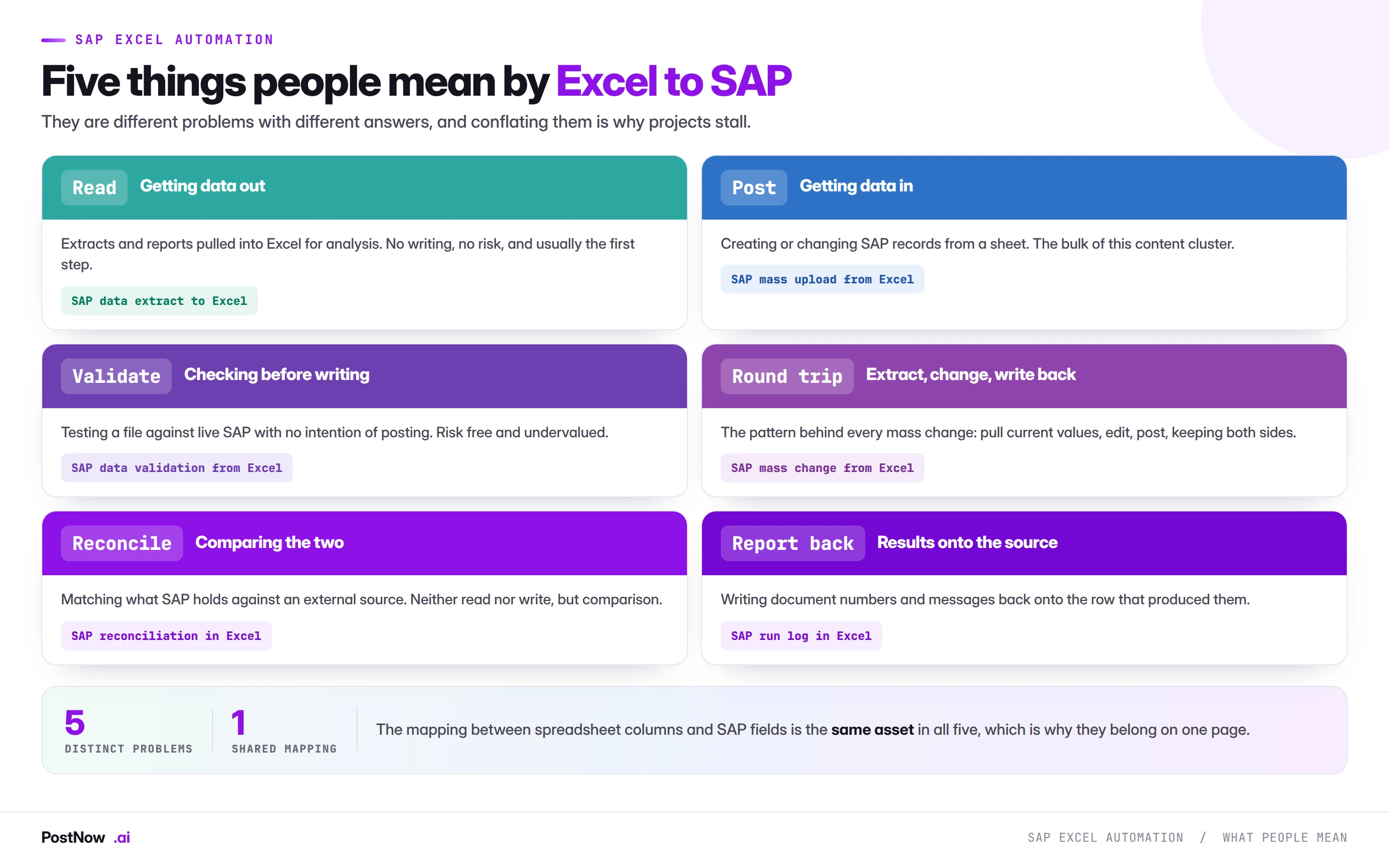
Five problems that share a name
Read. Getting data out of SAP into a sheet for analysis. No writing, no risk, and usually where an organisation starts. Standard reports, extracts and query tools all serve this, and it is the least contentious of the five.
Post. Creating or changing SAP records from a spreadsheet. The bulk of this content cluster, and where the risk sits. Everything about validation, methods and governance elsewhere in these guides applies to this pattern.
Validate. Testing a file against live SAP with no intention of writing anything. Undervalued, risk free, and the easiest way to start: it produces a coverage report, proves the mapping is right, and needs no approval because nothing is written.
Round trip. Extract current values, edit them, write them back, keeping both sides visible. This is the pattern behind every mass change, and the reason the change pillar insists on extraction as stage one.
Reconcile. Comparing what SAP holds against an external source without writing either way. Neither read nor post exactly, and a large share of month-end work in practice.
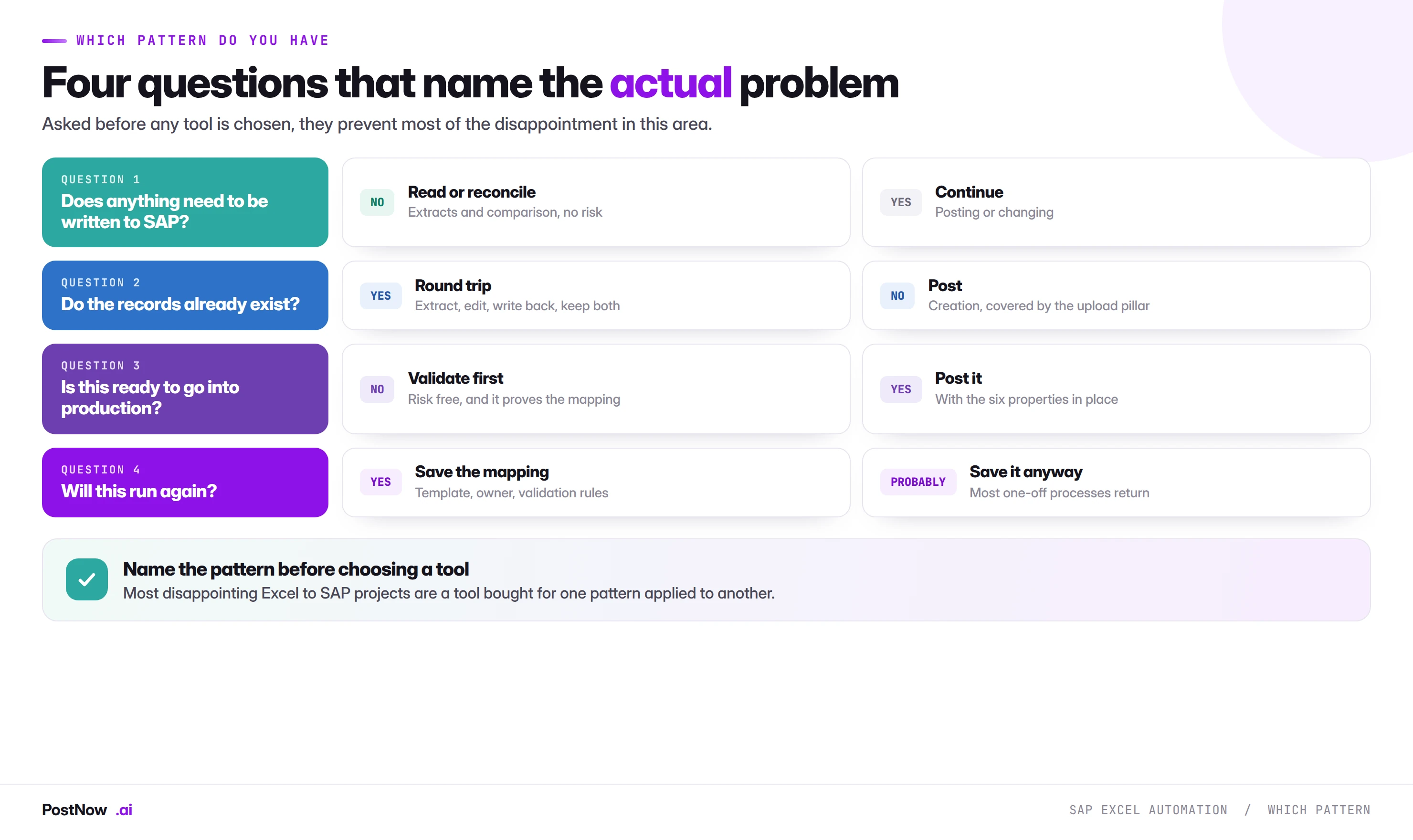
What they share
One thing, and it is the valuable thing: the mapping between spreadsheet columns and SAP fields. Working out that column F is the cost centre, that the reference column groups rows into documents, and that this field lives at plant level rather than client level is the same work whether you are reading, writing or comparing.
That mapping is the asset. Tools change, releases change, and the mapping survives all of it. Any approach that treats the mapping as disposable plumbing rather than as documented intellectual property is one that will be rebuilt from scratch each time something moves.
Why Excel does not go away
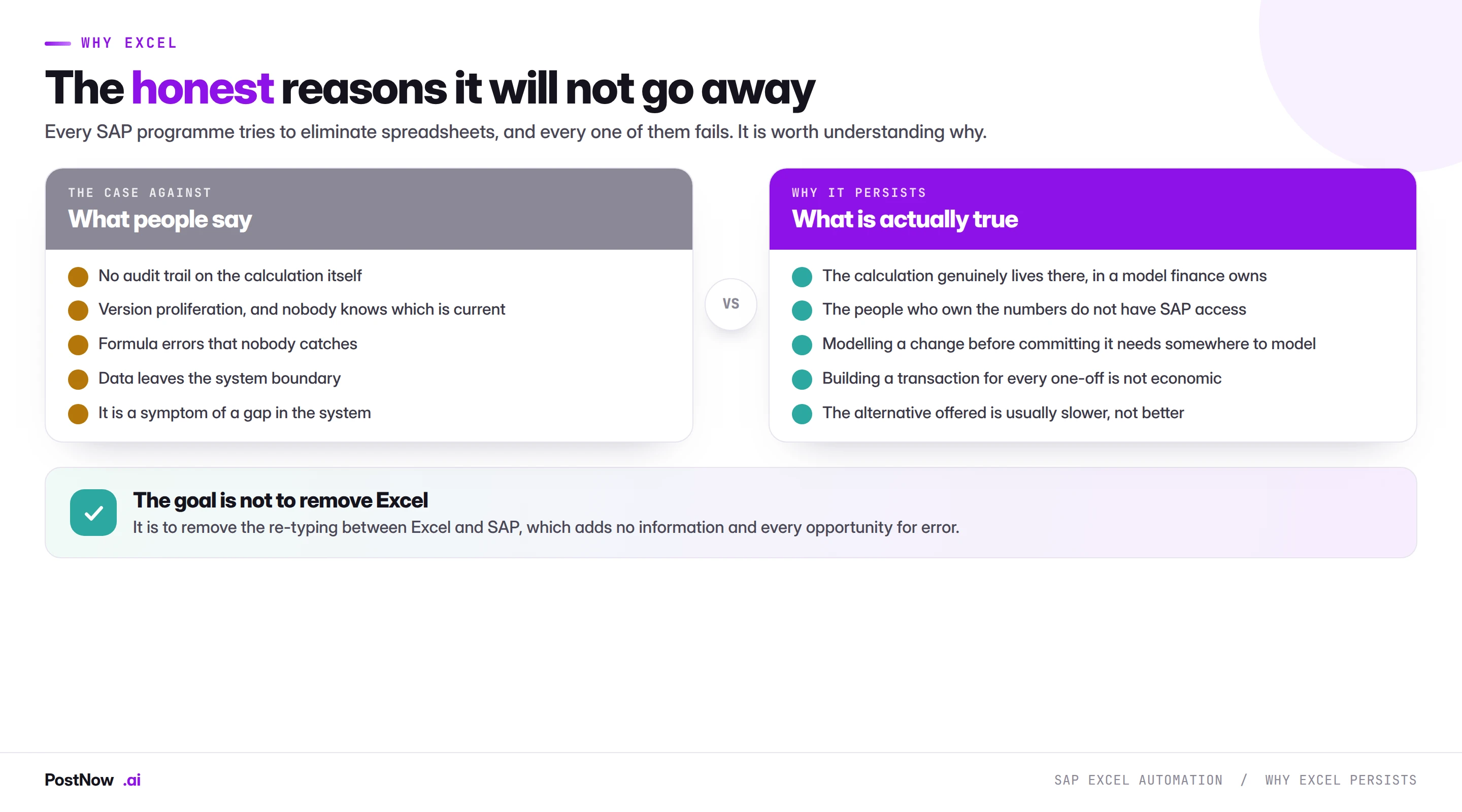
Every large SAP programme contains an intention to eliminate spreadsheets, and it is worth being honest about why they never quite do.
The case against Excel is real. There is no audit trail on the calculation itself. Versions proliferate. Formula errors go uncaught. Data leaves the system boundary. All true, and none of it is the reason spreadsheets persist.
They persist because the calculation genuinely lives there. An accrual model, an allocation basis, a price list, a headcount plan: these are built in Excel by people who own the numbers, using logic that changes faster than any system could be configured to follow. The spreadsheet is not a workaround for a missing transaction. It is where the thinking happens.
They also persist because of access. The person who owns the accrual model frequently has no SAP access at all, or read-only access, and the handover from them to somebody who can post is a real organisational boundary rather than a technical one.
And they persist because modelling requires somewhere to model. Deciding what a price increase should be, or which cost centres to consolidate, involves trying versions. That work has to happen somewhere before a decision is committed.
Approaches, compared
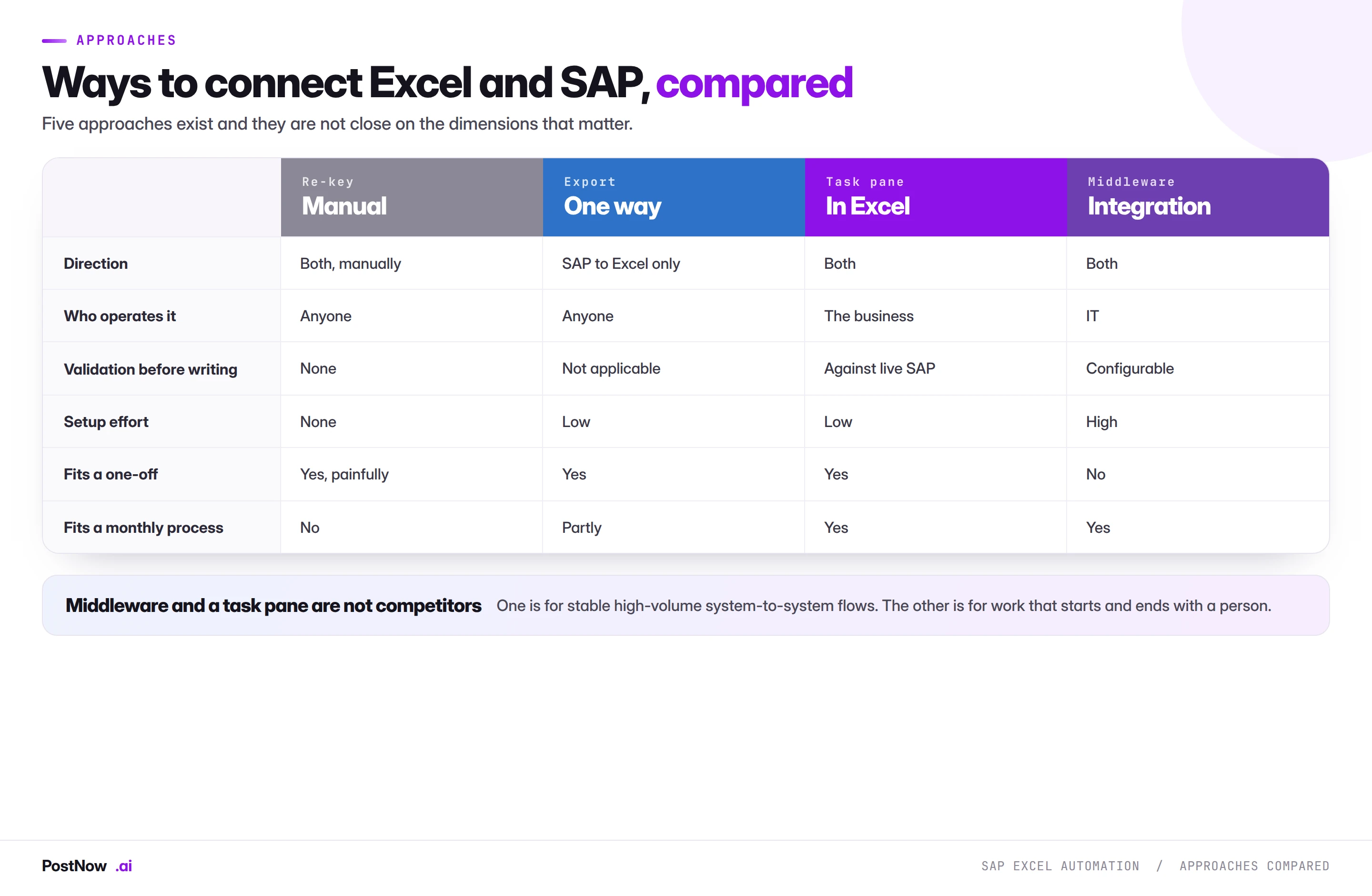
Four approaches cover almost everything in practice, and they differ most on who can operate them.
Re-keying is the baseline. It needs no setup, works for anything, and costs the transcription time plus the error rate. For ten records it is genuinely correct. For four hundred it is a week and a typo.
Export handles the read pattern well and does nothing for the others. Most organisations have this already and mistake it for a solution to the posting problem.
A task pane inside Excel keeps the work where the data already is. Its distinguishing property is who can run it: the person who owns the numbers, rather than somebody they hand off to. That matters more than any technical characteristic, because the handover is usually the expensive part.
Middleware and integration platforms are built for stable, high-volume, system-to-system flows. Where a process repeats hundreds of times a month with a fixed shape, this is the right answer and nothing here competes with it.
The important point is the last row of that comparison: middleware and a task pane are not competitors. One is for flows between systems. The other is for work that starts and ends with a person, which is most of what this cluster describes.
What a defensible process looks like
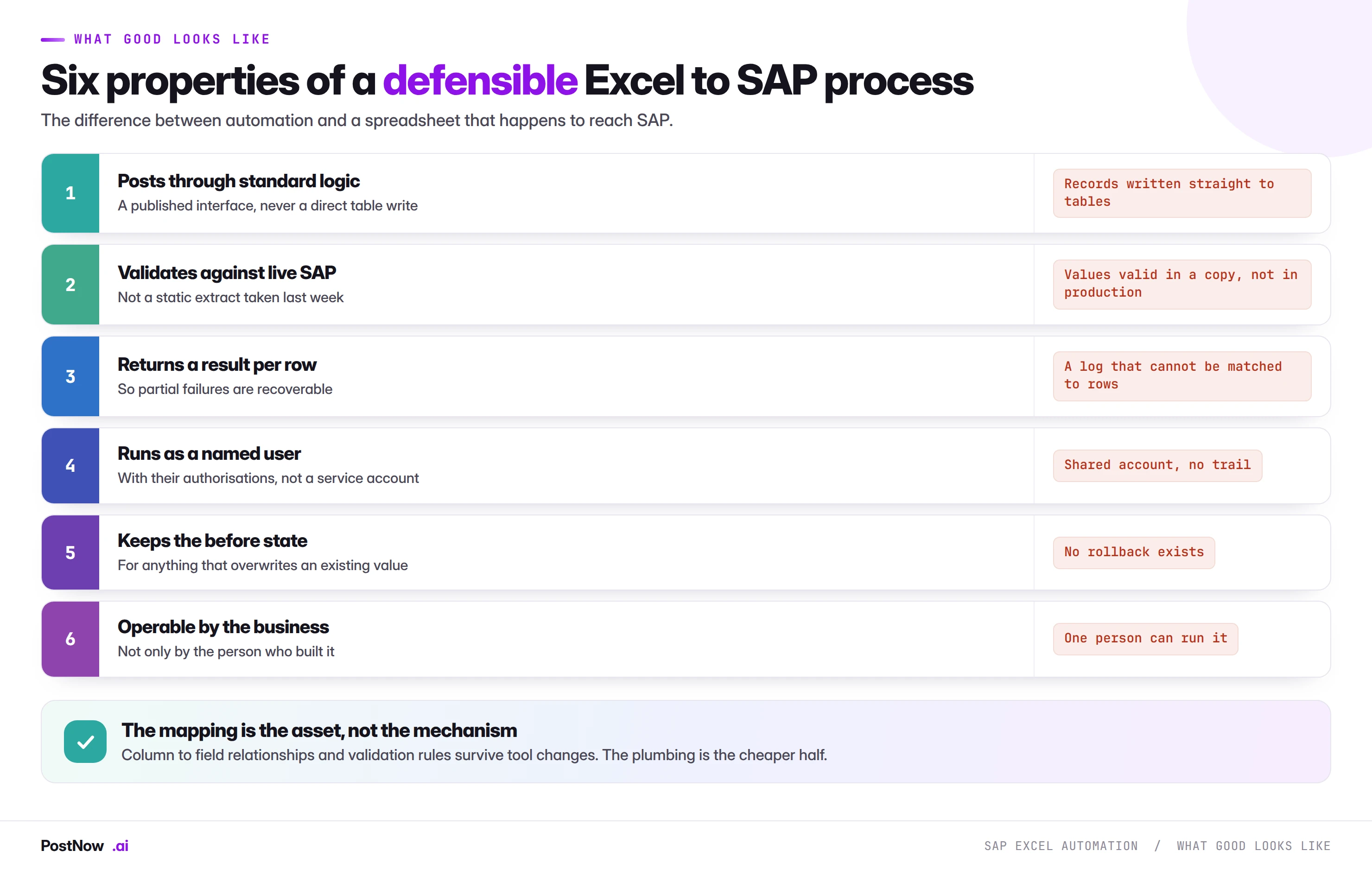
The line between automation and a spreadsheet that happens to reach SAP is not sophistication. It is these six properties, and a process either has them or it does not.
Posts through standard logic. A published interface, so every validation the transaction applies still applies and change documents are written as normal. The methods guide covers why this is the one non-negotiable.
Validates against live SAP. Not against a static extract taken last week. Configuration drifts, periods close, records get blocked, and a check against a copy gives false confidence.
Returns a result per row. The difference between a recoverable run and a manual reconciliation. If eleven rows out of four hundred fail, you need to know which eleven without reading a log.
Runs as a named user. With their authorisations, so the load can only touch what they could already touch manually.
Keeps the before state. For anything that overwrites an existing value, because there is no reversal document for a master data change.
Operable by the business. A process that requires its author is a dependency, not a process. This is the property most often traded away and most expensive to recover.
Where PostNow fits
PostNow is a task pane inside Excel
It sits in the third column of the comparison above. The workbook stays where it is, the person who owns the numbers runs the load, and the posting goes through SAP's published interfaces so nothing about the resulting records differs from manual entry.
The work stays in the file the business already maintains.
Validation against the system you are about to post into.
Published interfaces, so change documents are written as normal.
The result written back onto the row that produced it.
SAP Excel automation, step by step
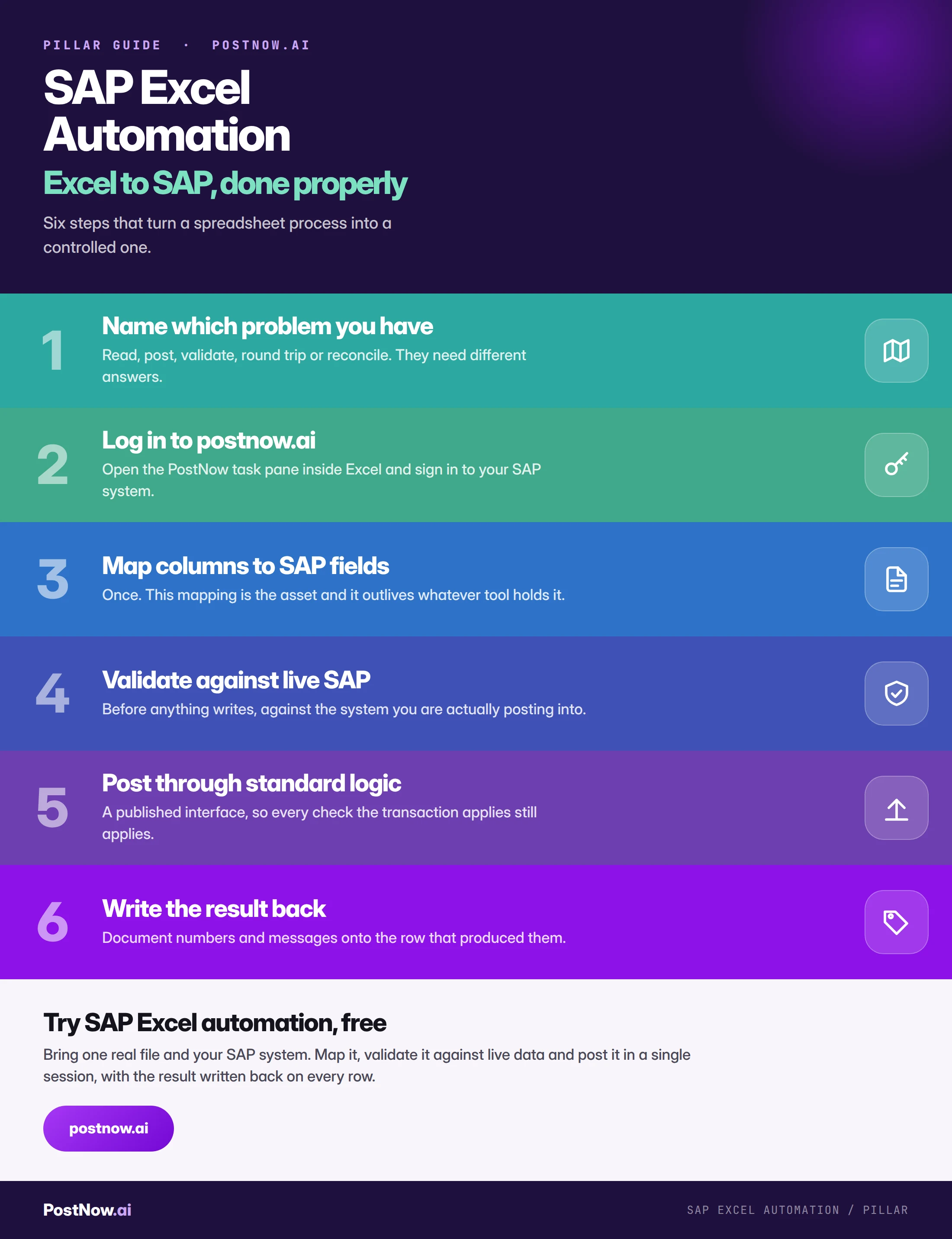
Where to start
The sequence that works for most organisations is deliberately unambitious at the beginning.
Start with validation, not posting. Run a file against live SAP with no intention of writing. It proves the mapping, produces a data quality report as a side effect, needs no approval because nothing is written, and it can run against production without ceremony. For a team nervous about writing, this is the acceptable first step and it is most of a load already built.
Then pick one recurring process, not the biggest one. The instinct is to start with the largest pain, which is usually also the most complex and the most visible. A smaller monthly process proves the approach with a lower cost of being wrong.
Prove it in a quality client, with a real file. Not a sample. Real files contain the edge cases that break templates, and finding them in test is the entire point.
Get somebody else to run the second one. The single best test of whether you have built a process or a dependency.
Then widen. Once one process works end to end with a named owner and a saved mapping, the second is considerably faster, because the hard part was never the technology.
Security, authorisations, and where the data actually goes
Any proposal to connect Excel to SAP raises a security question, and it is worth answering precisely rather than reassuringly.
Authorisations do not change. A load running under a named user can only do what that user could do manually. If they cannot post to a company code in the transaction, they cannot post to it from a spreadsheet. This is the single most important point and it is often assumed to be otherwise: people imagine a loading tool as a privileged back door, when a properly built one is the opposite.
The data boundary is worth mapping explicitly. Where does the file live, where does the connection terminate, and does anything leave your systems. The answers differ by approach, and the question deserves a precise answer rather than a general assurance. A task pane connecting from a desktop to your own SAP system has a different profile from a cloud service holding a copy of the file.
The credential model matters. A named user signing in with their own credentials is very different from a stored service account that anyone with the file can use. The second is convenient and removes the trail that makes the run defensible.
Existing controls generally still apply. Field-level authorisations, company code restrictions, posting period authorisation groups and release strategies all continue to operate, because the posting goes through the same interfaces the transaction uses.
Making the case, honestly
The business case for removing re-typing is usually made on time saved, which is the weakest of the three arguments available.
Time saved is real but easy to dispute. Somebody will point out that the person was salaried anyway, and the saving is only realised if the time goes somewhere useful. It is a true argument that invites an unproductive debate.
Error rate is stronger. Manual transcription has a measurable error rate, and the cost of an error is not the correction, it is the discovery: a wrong journal found at quarter end, a wrong price found by a customer, a wrong material master found by planning. Those costs are larger and less arguable.
Elapsed time is strongest. Not hours worked but calendar days consumed. A close that takes three days instead of five, a supplier onboarding that completes in a week instead of a month, a price change that lands on the first of the month instead of the eighth. These are the changes people actually notice, and they are usually driven by handovers rather than by keystrokes.
The honest framing is that the saving comes from removing a handover between the people who own the numbers and the people who can post them. That is an organisational improvement that happens to be delivered technically, and describing it that way tends to land better than a keystroke count.
The governance conversation
Excel-to-SAP proposals attract scrutiny, and the scrutiny is usually about the wrong thing. It helps to bring the right answers to it early.
- Change documents are written. The first question, and the answer is yes for anything posting through a published interface. Mass loading does not create an audit blind spot.
- Authorisations are the user's own. The load cannot touch what the person running it could not already touch, which means the existing authorisation design still holds.
- The file is a better review artefact than the transaction. Four thousand records with old and new values on one sheet is reviewable in minutes. Four thousand individual approvals are not reviewable at all.
- Segregation of duties is easier, not harder. The business supplies the file, somebody else runs it, and both facts are evidenced by an artefact rather than by assertion.
- The prohibition should be written down. Direct table writes are the thing to prohibit explicitly, because the pressure to make an exception arrives at the worst moment and an unwritten norm does not hold.
Teams frequently expect resistance and meet the opposite once these are on the table, because the evidence produced is better than the manual process being replaced.
Common mistakes
- Solving the wrong one of the five patterns. An extract tool will not post, and a posting tool is not a reporting solution.
- Trying to eliminate Excel rather than the re-typing. The calculation lives in the spreadsheet for good reasons and will stay there.
- Validating against a copy. Configuration drifts and periods close between the extract and the run.
- Building for the first run rather than the tenth. Most processes described as one-off return.
- Treating the mapping as disposable. It is the asset; the tool around it is the cheaper half.
- Starting with the biggest, most visible process. Highest complexity and highest cost of being wrong, at the point of least experience.
- Leaving it operable by one person. That is a dependency wearing the clothes of a process.
- Accepting a direct table write under deadline pressure. The one decision here that cannot be quietly corrected later.
Where to go next
- SAP mass upload from Excel. The posting pattern in full: validation layers, error handling and governance.
- SAP mass change. The round trip pattern, and why extraction is the mechanism rather than good practice.
- SAP data upload methods. Which mechanism to post through, and why two of six are never acceptable.
- SAP master data mass upload. Materials, vendors, customers and the three modes.
- SAP FICO mass posting. Finance documents, period control and the shared accounting model.
Who owns an Excel to SAP process
These processes sit precisely on the boundary between the business and IT, which is why ownership is so often unclear and why they decay.
The business owns the numbers and the mapping. What the columns mean, which SAP field each one feeds, and what the values should be. This is domain knowledge and it cannot be inferred from a spreadsheet layout.
IT owns the connection and the method. How the posting happens, which interface it uses, and whether the approach still works after an upgrade.
Somebody has to own the template. This is the role that goes unassigned. Configuration drifts, account groups change, fields move, and a template nobody owns fails quietly six months later at the worst moment. It is a small ongoing responsibility and it is the difference between a process that lasts and one that gets rebuilt.
The pattern that works is a named business owner for each recurring load, with IT owning the method across all of them. The pattern that fails is every load owned by whoever built it, which means no load is owned at all once that person moves on.
From one process to a capability
The gap between a team that has automated one load and a team that has an Excel-to-SAP capability is not more tools. It is four things that are cheap to establish early and expensive to retrofit.
A shared mapping library. Every load produces a column-to-field mapping. Stored together, they become a reference that makes the fifth load faster than the first. Stored in whoever built them, they become nothing.
A standard file shape. Identifier columns as text, dates in an unambiguous format, one row per record at the right organisational level, old value beside new for changes. Applied consistently, it removes an entire class of preparation error before it happens.
A named owner per recurring load. Not per project. The load returns; the project ended.
A written method position. Which interface, and the explicit prohibition on direct table writes. Written down, because the pressure to make an exception arrives when nothing is written down.
None of this is heavy. It is roughly a page of internal documentation and a folder, and it is the difference between an organisation that automated a load and one that can automate the next one in an afternoon.
The file itself: what breaks across every pattern
Whichever of the five patterns you are running, a handful of spreadsheet behaviours cause a disproportionate share of failures. They are worth designing out once rather than diagnosing repeatedly.
Leading zeros. SAP stores numeric identifiers padded. A material displayed as 100234 may be 000000000000100234 internally, and the same applies to vendors, customers and cost centres. A column formatted as a number destroys the padding silently and the error reads as though the record does not exist. Store identifier columns as text.
Dates as serial numbers. Excel stores dates as numbers and displays them as dates. Depending on how a file moves between systems, a posting date can arrive as a five-digit number. Prefer an unambiguous text format such as 2026-07-31 whenever a file crosses a boundary.
Amounts as text. A column pasted from a report frequently arrives as text that looks like a number. It right-aligns oddly, sums to zero, and passes visual inspection perfectly, which is how a document that visibly balances fails a balance check.
Locale differences. A file built in one regional setting and opened in another can reinterpret 1.234,56 in ways that change the value by three orders of magnitude. On multi-entity work where files cross borders between preparation and loading, this is not theoretical.
Trailing whitespace. A cost centre of "CC-1000 " is not "CC-1000". Invisible on screen, survives copy-paste, and produces validation failures that read as missing master data. Trim key columns as routine.
Hidden rows and active filters. A filtered sheet shows a subset. Whether a load reads the view or the file determines whether you post less or more than intended, and neither surprise is welcome.
Three approaches that look like automation and are not
Worth naming, because each is common, each is defended as automation, and each carries a specific problem.
The macro that drives the GUI. A spreadsheet with a button that types into SAP through keystroke automation. It is genuinely faster than a person and it inherits every weakness described in the methods guide: it needs a logged-in session, breaks on any screen change, cannot report reliably on which rows failed, and runs as whoever left the session open. It also tends to live on one desktop, which makes it a person-shaped dependency rather than a process.
The extract that becomes a source of truth. A report pulled into Excel, edited, circulated, and then treated as authoritative while SAP still holds the original values. Nothing was automated at all; a second version of the data was created. This is the most common Excel problem in practice and no loading tool fixes it, because the issue is that the write-back never happens.
The one-off script nobody owns. Written by a consultant or a developer for a specific project, working correctly, and then run every month by somebody who does not understand it. It functions until configuration changes, at which point nobody can diagnose it. The mapping exists only inside the code.
What these share is that they solve the mechanical problem and leave the organisational one in place. The re-typing goes; the dependency, the second source of truth, or the undocumented logic remains. That is why the six properties earlier on this page are stated as properties of a process rather than of a tool.
Keeping it working
Excel-to-SAP processes fail quietly rather than dramatically, usually months after they were built, and usually for one of four reasons.
Configuration drifted. An account group was added, a field status changed, a check table gained values. The mapping that was correct is now incomplete. Reviewing templates after any configuration change is a small habit that prevents a month-end surprise.
The system moved. A support pack, an upgrade or a conversion. Interface-based loads need a remap; anything screen-based needs rebuilding. The methods guide covers which is which, and the review point is the same either way.
The owner left. The most common cause and the least technical. A process with a named owner survives a departure because there is somebody to hand it to. A process owned by whoever built it does not.
The requirement changed and nobody updated the template. A new field became mandatory, a new plant came into scope, the business started sending a different layout. The load still runs and quietly stops covering what it was meant to cover.
The mitigation for all four is the same and it is unglamorous: a named owner, a saved mapping, and a review after anything changes. That is perhaps an hour a quarter per recurring process, and it is the difference between a capability and a series of one-off successes.
The complete Excel automation reference
The reference sheet below collects everything above into one image you can share when the question comes up.

Go deeper
SAP mass upload
The posting pattern in full: validation layers, error handling and governance.
SAP mass change
The round trip pattern, and why extraction is the mechanism rather than good practice.
Master data
Materials, vendors, customers, and the three modes of create, change and extend.