SAP inventory adjustment automation is the practice of correcting stock balances from a spreadsheet, loading opening quantities or booking count differences, rather than keying each one into MB1C. PostNow runs it from Excel: every stock line is a row, and the add-in posts them with the standard BAPI_GOODSMVT_CREATE, gathering lines into material documents, applying the adjustment movement type, checking the values, and committing in one run, with any SAP error rendered in plain language.
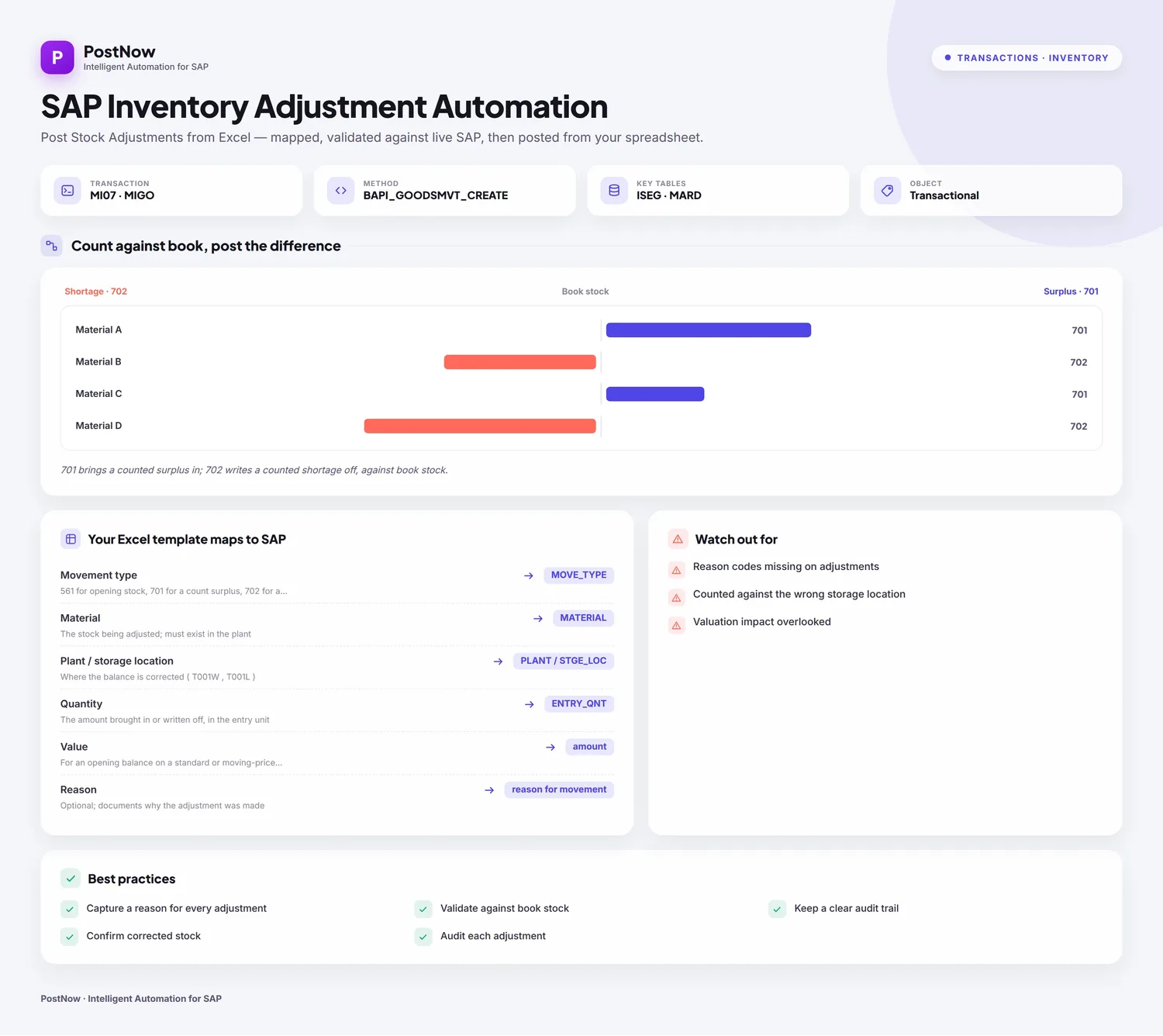
This is a twelve-step worked example of posting inventory adjustments from Excel to SAP, opening stock balances at go-live and the surpluses and shortages a physical count throws up, all in one run. Keep the mapping, the document grouping included, and you have a stock adjustment Excel template ready for the next count or cutover. It works on classic ECC and on S/4HANA, where Inventory Management still books adjustments behind MB1C and the same BAPI. Beyond a one-time setup, the people running the load need no ABAP and no developer.
Why post inventory adjustments from Excel instead of keying MB1C
Adjusting stock manually in MB1C means choosing the adjustment movement type, then entering each line with its material, plant, storage location, quantity, and, for an opening balance, a value. A few corrections are quick. Loading the opening stock for an entire warehouse at go-live, or booking the differences from a wall-to-wall count, becomes hundreds or thousands of lines keyed one by one, and a wrong quantity or a misread location quietly throws the books out.
Posting inventory adjustments from Excel changes the picture. The figures already sit in a spreadsheet, a migration extract or a count sheet, and post to SAP grouped into material documents in one run. For a go-live opening stock upload or a periodic mass stock adjustment, the awkward parts, picking the function and movement code, mapping the fields, getting quantities and values right, and reading MM messages, are taken care of. The twelve steps below run through the whole flow.
Before you start: what you need
- Your stock lines in Excel, one per row, with a shared document reference where several lines should post as one material document.
- SAP authorization to post stock adjustments, the access you would use for
MB1C, across the movement types, plants, and storage locations you are loading. - PostNow in Excel, plugged into your SAP system. Its function modules are deployed to SAP once at setup; after that, the adjustment runs happen from the task pane.
Your stock adjustment Excel template: the fields SAP expects
An adjustment line states what to correct, where, by how much, and for an opening balance at what value. These are the fields a stock adjustment run depends on; carry them, and confirm the materials, plants, and storage locations they name already exist.
| Excel column | SAP field | Why it matters |
|---|---|---|
| Movement type | MOVE_TYPE | 561 for opening stock, 701 for a count surplus, 702 for a shortage |
| Material | MATERIAL | The stock being adjusted; must exist in the plant |
| Plant / storage location | PLANT / STGE_LOC | Where the balance is corrected (T001W, T001L) |
| Quantity | ENTRY_QNT | The amount brought in or written off, in the entry unit |
| Value | amount | For an opening balance on a standard or moving-price material, where required |
| Reason | reason for movement | Optional; documents why the adjustment was made |
BAPI_GOODSMVT_CREATE posts a material document from a GOODSMVT_HEADER, a GOODSMVT_CODE set to the other-goods-receipt class behind MB1C, and a GOODSMVT_ITEM table whose lines carry the adjustment movement type, 561, 701, or 702, with the quantity and any value. It supports a test run and returns the material document number, with the commit issued once the post succeeds. Step 2 has PostNow's function finder pick the BAPI and set the code.The inventory adjustment run, step by step
Lay out and open your sheet
Put each stock line on a row under headers like Document Ref, Movement Type, Material, Plant, Storage Location, Quantity, and Value. Open the workbook and open the PostNow task pane next to it.
Choose the movement BAPI
A standard call writes the document, so nothing is recorded. Open the function finder and take what the task needs:
- Take
BAPI_GOODSMVT_CREATEand set the movement code to the other-goods-receipt class behindMB1C - Each line then carries its adjustment movement type, 561 to bring stock in, or 701 and 702 to book count differences
- Switch on the test run to simulate the posting before any material document is created
Confirm the function and PostNow brings in its header and item structures, ready to line up with your columns, so MB1C stays shut.
Look over the structures it returns
What comes back is a small header, a code, and a table of stock lines. Because it follows how a material document is assembled, a glance shows what sits on the document and what sits on each line:
That tells you, before any mapping, which columns are document-level and which repeat per stock line.
Open the Mapping Designer
Choosing the BAPI fills the Mapping Designer with a line for each header and stock-line field. Two things matter here:
- Extensions are detected. Append fields your system adds to the stock line are detected automatically.
- You can add your own. Whatever is missed you add manually, so standard and custom fields travel in one run.
Match columns with Mapping AI AI
Now join the structures to your data. Mapping AI proposes an Excel column for each header and stock-line field, reading your headers or a screenshot you drop in, and you confirm or adjust, useful when a line carries a movement type, a location, a quantity, and a value together.
Auto Map and group lines under a document
Run Auto Map to fix the mapping and write SAP-tagged headers across the sheet. Because a material document can hold many stock lines, this is where you set the grouping: rows that share a document reference post as one material document, the header taken once and the lines taken as items. The workbook is the template from this point, and the grouping goes with it.
Format the lines and set defaults
A field's properties set how its value posts: leading zeros on the material number, upper case on codes, a date format on the posting date, the right decimals on quantity and value, defaults for a constant plant, and regex. Getting the value decimals right matters for opening balances, where the amount sets the stock value as well as the quantity.
Screen the lines in Excel first
Worth a screen before posting: an inventory error usually lands as a short code once a line has already failed. Validate moves the check forward, each row tested against SAP's length, format, and required-field rules with the offending cells flagged, so the sheet is clean before any line goes.
Confirm against live SAP
Good formatting is no guarantee a value exists, a storage location can read fine and not be extended for the material. To check it, open the field's properties, enable field validation, and give it the check table and field, a material against MARA, a plant against T001W, or a storage location against T001L. Select the cell, run Validate master data, and PostNow asks live SAP whether the stock value exists and can be used.
Group lines into documents with loops
Because each call posts one material document, this is where the structure pays off:
- Header/detail loops: rows sharing a document reference collapse into one material document, the header taken once and each stock line added as an item.
- IF conditions: include only the lines you want, for example posting an opening balance only where a quantity is present, or holding back lines whose count matched and need no adjustment.
Set the scope, post, and review AI
Pick the range with Run Scope, one document first, then the rest, and press Run; the test run fits here too. A few aids:
- Run log: results show live and write into a log column beside each row in Excel.
- Payload view: open the exact data sent to SAP for any document, header and stock lines together, so a failure is never a guess.
- AI error review: AI Review reads the inventory message and explains, plainly, what blocked the line and where to fix it.
- Material document per group: PostNow returns the new material document number beside the lines it covers.
Publish and roll it out to the team
When the run is clean, publish. The configuration, grouping and all, becomes a script the inventory team runs unchanged, they open it, paste their stock lines, and post, with no mapping to rebuild and no need to know the BAPI underneath. A one-time build becomes the standard way to correct stock.
Let's talk
Bring a real opening-stock file or count sheet and a live SAP connection to a working session. We will set the code, group the stock lines into documents, map, validate, and post for real, with AI taking the strain. No slide decks.
Frequently asked questions
What is SAP inventory adjustment automation?
MB1C. With PostNow the stock lines stay in Excel and post in one governed run via BAPI_GOODSMVT_CREATE, while AI maps the fields, checks the values, and explains any MM error.How do you load opening stock balances in SAP from Excel?
BAPI_GOODSMVT_CREATE and groups lines into material documents, so there is no MB1C keying and no ABAP.Which movement types does an inventory adjustment use?
BAPI_GOODSMVT_CREATE with the other-goods-receipt movement code, since they adjust the balance rather than reference a purchasing document.