SAP vendor master automation means creating and maintaining vendor records in SAP programmatically, instead of entering them one at a time in XK01. This guide shows how to do it directly from Excel with PostNow: you lay your vendors out in a spreadsheet, and because the vendor master has no clean BAPI, PostNow records the XK01 transaction, maps your columns to the correct fields, marks the update flags for any changes, validates the data, and posts every row to SAP in one governed run, explaining any SAP error in plain language.
The walkthrough below is a complete, twelve-step example of an Excel to SAP vendor upload that covers both onboarding new vendors and maintaining existing records in a single mass run. You can save the finished mapping as a reusable vendor master Excel template, so the next load is just new data in the same columns. It applies to classic ECC, where vendors are maintained with XK01 and XK02, and to S/4HANA, where the vendor is a role on a Business Partner maintained through BP. After a one-time setup, the people running the load need no ABAP and no further development.
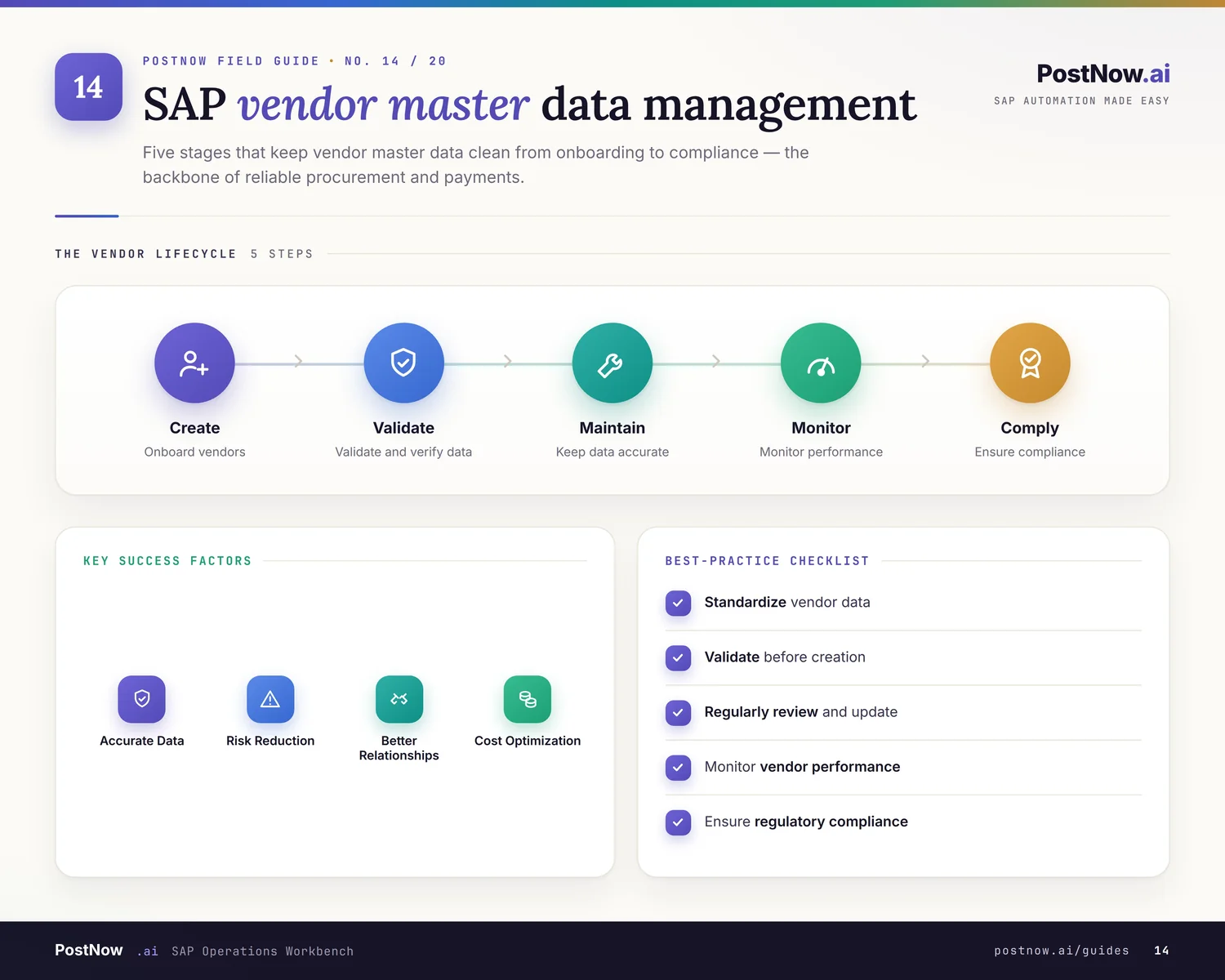
Why automate vendor creation instead of keying XK01
Creating vendors by hand means opening XK01, working through the general, company-code, and purchasing-organization views, saving, and repeating for every single vendor. A handful is tedious. A new plant, an acquisition, or an ECC-to-S/4HANA migration turns it into days of work and a steady stream of mistakes in account groups, reconciliation accounts, and payment terms.
A vendor master upload from Excel to SAP flips that. The data stays in the spreadsheet it already lives in, and every row posts to SAP in one governed run. Whether you are doing a one-off bulk vendor creation in SAP or a recurring mass vendor upload, the tedious parts are handled for you: recording the transaction, mapping fields, marking update flags, and translating SAP errors into plain language. The twelve steps below cover the whole flow.
Before you start: what you need
- Vendor data in Excel, one row per vendor (for a simple load), with a column for each SAP field you intend to populate.
- SAP authorization to create or change vendors, the same access you'd use for
XK01/XK02, or Business Partner (BP) in S/4HANA. - The PostNow add-in in Excel, connected to your SAP system. PostNow uses a set of function modules in SAP that are deployed once during setup; after that, everything you do below happens in the Excel task pane.
XK01. In S/4HANA the vendor is a role on a Business Partner, maintained through BP. The flow below works for both.Your vendor master Excel template: the fields SAP expects
A vendor record spans several views, and a load usually fails on the same few fields. These columns form the core of your vendor upload template, so at minimum make sure your sheet carries them, and that the referenced values already exist in SAP.
| Excel column | SAP field | Why it matters |
|---|---|---|
| Account group | KTOKK | Drives the number range and which fields are required |
| Name | NAME1 | Mandatory on the general view |
| Company code | BUKRS | Must already exist (T001) |
| Reconciliation account | AKONT | Must be a valid GL account for that company code |
| Purchasing org | EKORG | Needed for the purchasing view |
| Payment terms | ZTERM | Must pre-exist in SAP |
BAPI_VENDOR_CREATE and BAPI_VENDOR_EDIT exist, but they call XK01 and XK02 in dialog mode, so mass vendor uploads usually rely on the VMD_EI_API class (method MAINTAIN), the older VENDOR_INSERT function module (which takes the LFA1, LFB1, and LFM1 structures), an XK01 batch input, or the CREMAS IDoc. In S/4HANA the vendor is a Business Partner, maintained through BP. This is why this guide records the transaction instead of calling a BAPI: in Step 2 you enter the T-code XK01, PostNow records the screen flow, and returns the BDC structure to map, no BAPI required.The vendor upload, step by step
Prepare and open your sheet
Lay your vendors out one row each with clear headers such as Account Group, Name, Company Code, Recon Account, and Payment Terms. Open the workbook and launch the PostNow task pane.
Record the XK01 transaction
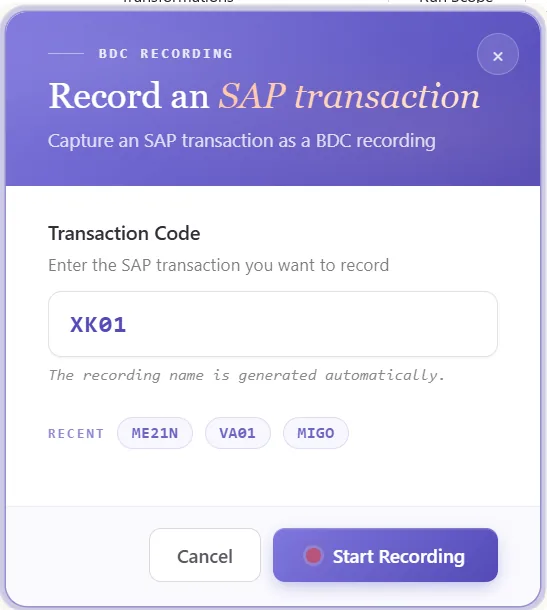
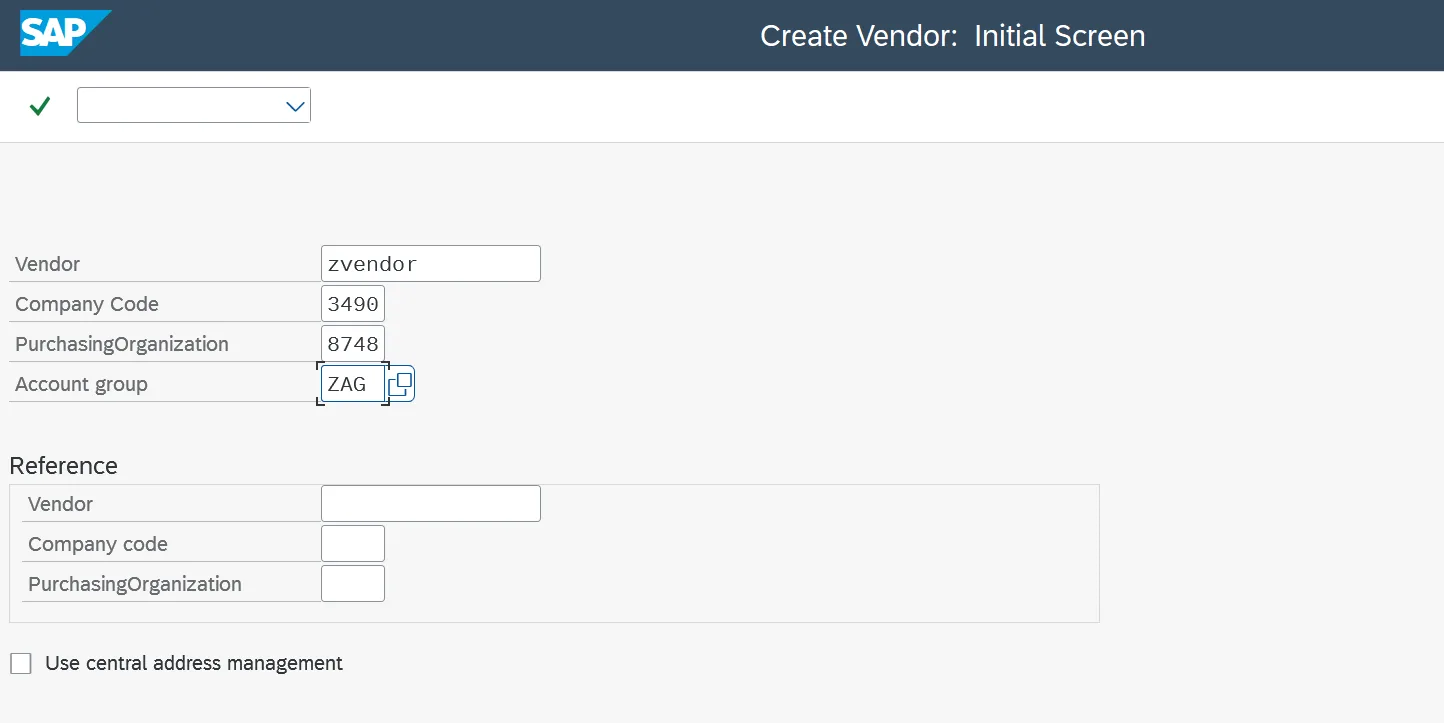
The vendor master has no clean BAPI, so this guide builds the upload from a recording instead. Open the recorder, enter the T-code XK01, and run through the transaction once:
- Enter the T-code
XK01to start the recording - Step through the general, company-code, and purchasing-organization screens
- Save, and PostNow captures the screen flow as a reusable recording
When you finish, the system returns the BDC data structure: every field from the screens you visited, ready to map to your Excel columns. The recording is saved, so you replay it for every row instead of keying XK01 by hand.
Review the recorded BDC structure
The recording returns a BDC data structure: the fields captured from each XK01 screen. They line up with the tables behind the vendor master, so a quick glance tells you which fields are header-level, which repeat per line, and where custom data lives:
Knowing these up front means you already understand how your spreadsheet columns line up against SAP before you map anything.
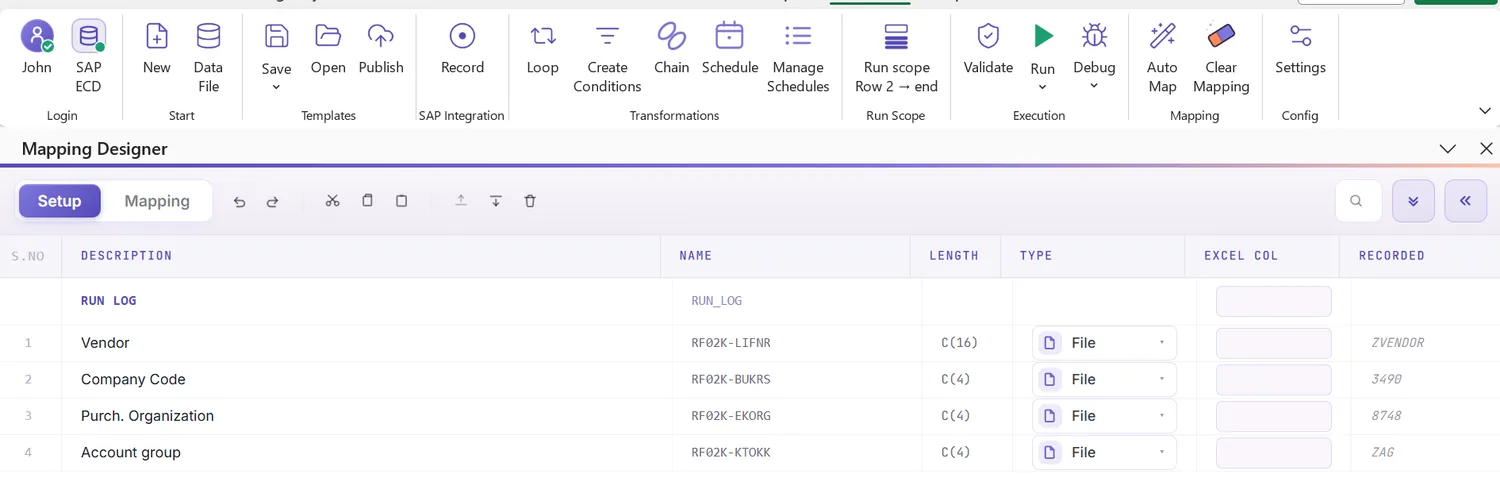
Open the Mapping Designer
The chosen function populates the Mapping Designer with a row for every field. Two things make this powerful for vendors:
- Customer extensions are supported. The designer first tries to extract your extension (Z) structures automatically based on its own logic, so custom fields show up without hunting for them.
- You can add extensions manually too. Anything the automatic step does not pick up, you add by hand. This means you can create or update custom data in the same load as the standard fields.
Map with Mapping AI AI
Now connect the recorded structure to your data. Mapping AI matches each SAP field to the right Excel column, working from either your column headers or a SAP screenshot you drop in. It reads labels and sample values and proposes the mapping for you to confirm.
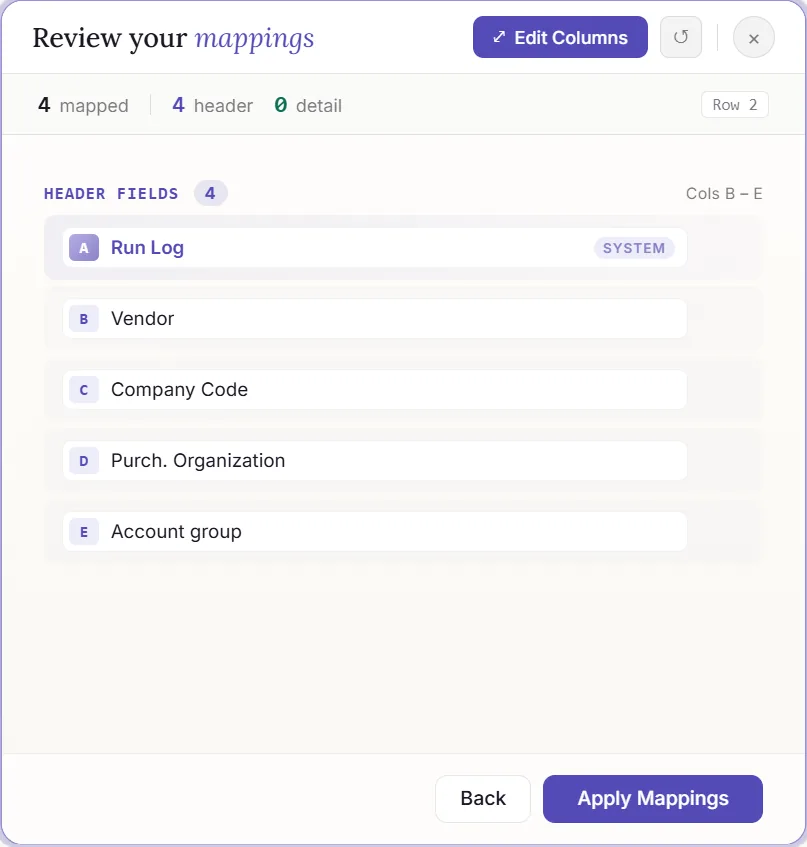
Auto Map and sync the headers
Run Auto Map to commit the mapping to your sheet. It wires every field to its Excel column and writes the SAP-tagged headers back into the spreadsheet, so the workbook itself becomes the template. From here the sheet and the SAP structure stay in step.
Set formatting and auto-mark the X (update) fields
Open a field's properties to control how its values are shaped at post time: leading zeros for account and recon numbers, upper case, trim spaces, date format, defaults, and regex.
There is also a fix for a well-known time sink. When you change a value in SAP, you also have to set its matching update flag, the X field, to X. Doing that by hand across many fields is slow and easy to get wrong. PostNow detects the X fields for the values you are changing and marks them automatically, so a mass change does not mean hand-flagging dozens of update indicators.
Validate the data in Excel
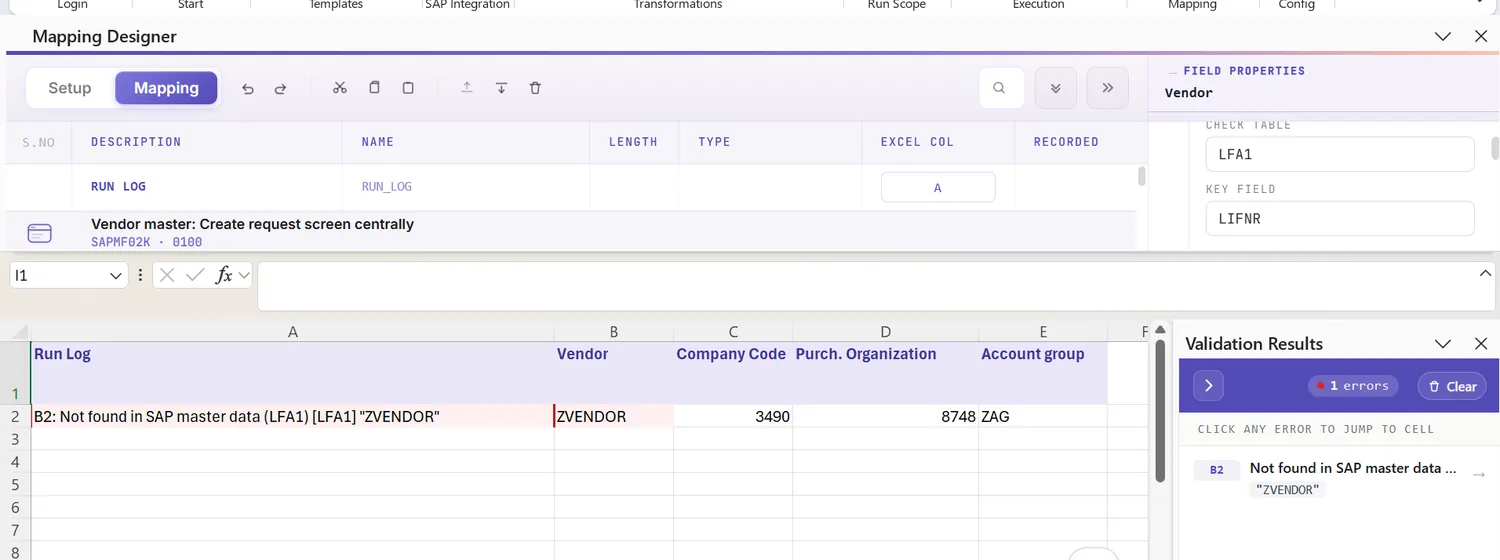
Here is why this step matters: when a posting fails, SAP error messages are often cryptic and slow to interpret, and you only see them after the row has already failed. Validating first avoids that. Run Validate and PostNow checks every row against SAP's field rules, lengths, required fields, and formats, flagging the exact cells so you fix clean data up front rather than decoding failures later.
Validate master data against live SAP
Format-clean is not the same as real. To check a value actually exists in SAP, first turn the check on: open the field's properties and enable field validation. It will ask you for the check table and field name to look against (for example a company code against T001). Once that is set, selecting the cell and running Validate master data connects to live SAP and confirms the value is present and active.
Transform with loops and conditions
If your data is more than a flat list, shape it before running:
- Loops (header / detail): group rows so one header carries many detail lines, for example a vendor with several bank accounts or company-code views. You set which rows repeat and the loop handles the rest.
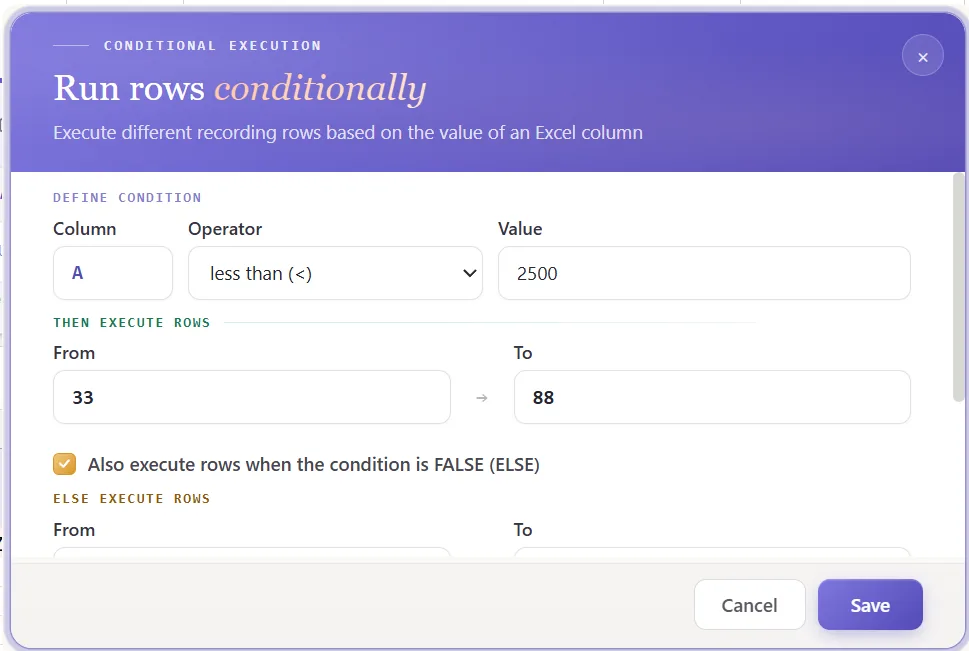
- IF conditions: process only the rows you want, based on a cell value, for example skipping rows where a flag column is blank.
Set the run scope, post, and review AI
Pick the range with Run Scope (a test row first, then the full set) and click Run. Several things help you here:
- Detailed run log: you see a full result in the run popup as rows post, and the same log is written into a run-log column in Excel next to each row.
- Payload view: for any row you can open the exact payload sent to SAP. This matters because without it a failure is a black box; seeing the data that actually went over makes troubleshooting straightforward.
- AI error review: SAP error text is often hard to understand. AI Review reads the message and explains, in plain language, what the error means and where to look, so you are not stuck on a cryptic code.
- Debug for recordings: when a BDC recording misbehaves, step through it live. Mode A displays every screen, Mode E stops only on errors, so you can see exactly where a value did not land.
Publish and share with your team
Once the upload runs cleanly, publish it. Publishing turns your finished configuration into a shareable script: colleagues simply open it, enter their data, and post to SAP, without rebuilding the mapping or needing to understand the BAPI. That is how a one-time setup becomes a repeatable, standardised vendor process for the whole team.
Let's talk
Bring a real vendor file and your SAP system to a working session. We map, validate, and post it live, with AI doing the heavy lifting. No slides.
Frequently asked questions
What is SAP vendor master automation?
XK01. With a tool like PostNow, vendor data stays in Excel and posts to SAP in one governed run, with AI handling field mapping, validation, and error explanations.How do you upload vendors from Excel to SAP?
XK01, marks the update flags, and validates against live SAP, so there is no manual keying or ABAP.Is there a template for uploading vendor master data to SAP?
Which BAPI is used to create SAP vendor master records?
BAPI_VENDOR_CREATE and BAPI_VENDOR_EDIT exist but call XK01 and XK02 in dialog mode, so mass loads typically use the VMD_EI_API class (method MAINTAIN), the VENDOR_INSERT function module, an XK01 batch input, or the CREMAS IDoc. PostNow's function finder picks the right one for your system or records XK01, so you do not need to know the name.